

 Written by
 In this blog post, we’ll explore how you can dynamically retrieve team members using the teammembership_association/any(t:t/teamid eq teamid) query in Power Automate. This query is particularly important when working with Teams in Dataverse, as it enables you to efficiently filter and target specific team members for scenarios like notifications, approvals, or other automated workflows.
We’ll demonstrate this with a practical example of sending email notifications based on the Expense Status in Dataverse. We will also include steps for creating the Expense Approver Team and setting up the environment variable to store the Team ID.
Why TeamMembership_Association is important?
When working with Dataverse Teams in Power Automate, it’s common to send notifications or perform actions that involve team members. However:
- Dataverse Teams can have dynamic membership.
- Fetching all team members can be inefficient.
- Filtering team-specific users using
teammembership_associationensures that your flow targets only relevant members dynamically.
The teammembership_association/any(t:t/teamid eq teamid) query is a powerful OData filter that helps you retrieve members of a specific team using the Team ID without unnecessary data retrieval.
Pre-requisites
- A Dataverse Table called
Expensewith columns:- Expense ID
- Status (Submitted, Approved, etc.)
- Owner Email
- An Expense Approver Team created in Dataverse.
- Understanding of the OData filter query:
teammembership_association/any(t:t/teamid eq teamid).
- Create an Environment Variable to Store Team ID:
Step 1: Create the Expense Approver Team in Dataverse
- Go to Power Platform Admin Center → Environments.
- Select the appropriate Environment.
- Navigate to Settings → Users + Permissions → Teams.
- Click New Team and configure the following:
- Team Name:
Expense Approver Team. - Description: “Team responsible for approving submitted expenses.”
- Business Unit: Select the relevant Business Unit.
- Team Type: Select Owner Team.
- Team Name:
- Click Save.
- Once saved, the system generates a GUID (Team ID) for the team. To retrieve this GUID:
- Navigate to the team record in Advanced Find or use XrmToolBox.
- The Team ID for our example is:
42b6ce60-34b9-ef11-a72f-0022485a22c7.
Step 2: Create an Environment Variable for Team ID
- Go to Power Apps → Solutions (create a new solution if needed).
- Within the solution:
- Click New → Environment Variable.
- Configure the environment variable as follows:
- Display Name:
ExpenseApproverTeamID. - Name:
ExpenseApproverTeamID. - Type: Text.
- Value: Paste the Team ID:
42b6ce60-34b9-ef11-a72f-0022485a22c7.
- Display Name:
- Save and publish the environment variable.
You can now reference this variable dynamically in the flow.
Step 3: Build the Cloud Flow
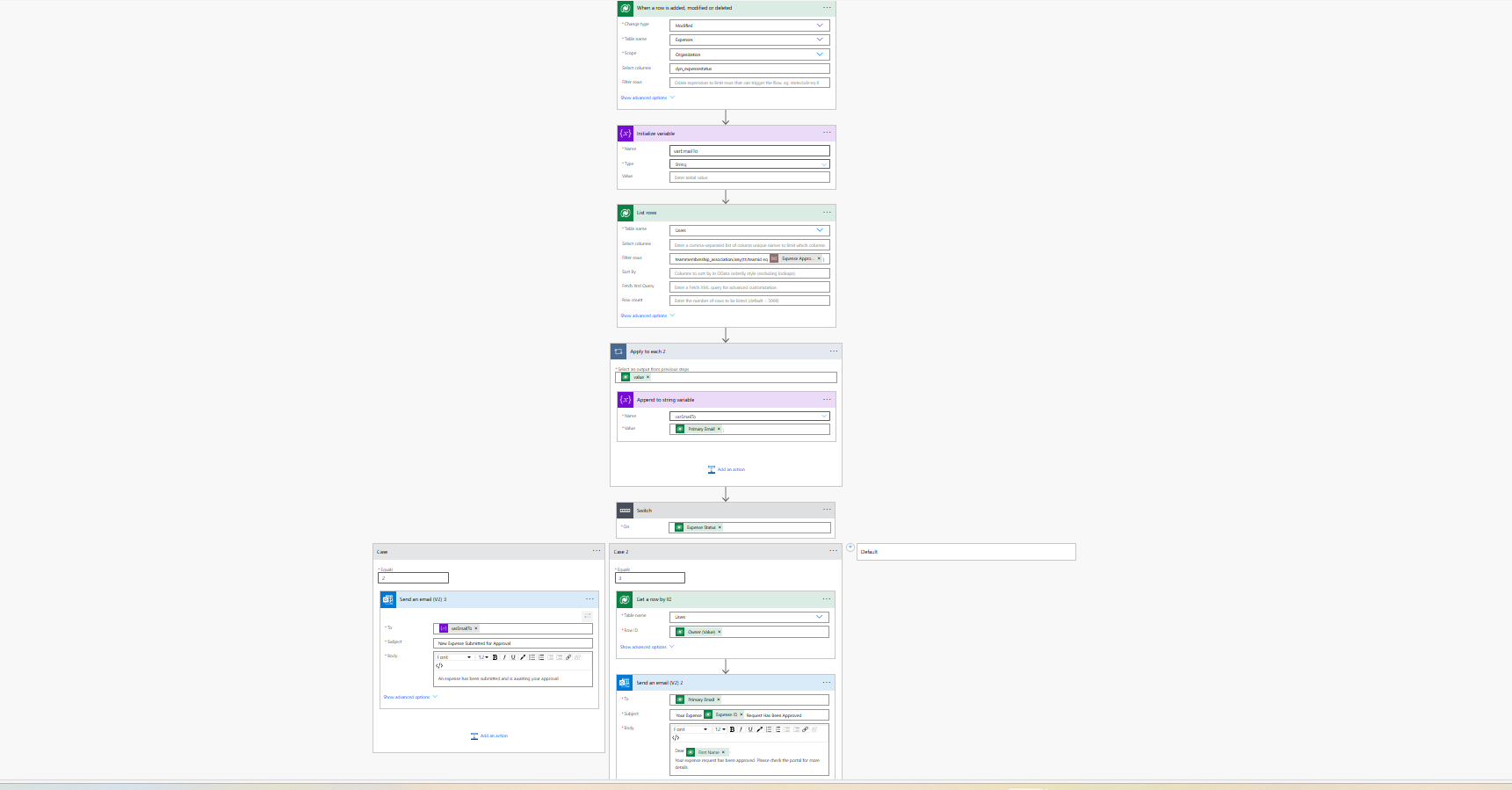
We will now build a cloud flow that:
- Sends an email to Expense Approver Team members when the Expense status is “Submitted”.
- Sends an email to the Expense Owner when the Expense status is “Approved”.
Trigger the Flow
- Go to Power Automate → Create → Automated Cloud Flow.
- Trigger: Use
When a row is added, modified, or deleted(Dataverse Trigger).- Change Type: Modified.
- Table Name:
Expense.
Step 4: Fetch Team Members Dynamically
- Add an Initialize Variable action to store the Team ID:
- Name:
ApproverTeamID. - Type: String.
- Value: Use the Environment Variable (
ExpenseApproverTeamID).
- Name:
- Add a List Rows action to fetch team members dynamically:
- Table Name:
Users.
- Filter Query: Use the following OData query:
teammembership_association/any(t:t/teamid eq '42b6ce60-34b9-ef11-a72f-0022485a22c7') - Table Name:
Step 5: Add a Switch Condition to Check Expense Status
- Add a Switch condition.
- In the On field, select the Status column from the Expense table.
Case 1: Status = “Submitted”
- Add a Send an Email (V2) action:
- To: Use the email addresses of the team members retrieved from the List Rows step.
- Subject: “Expense Submission Requires Approval”.
- Body:
An expense has been submitted and requires your approval. Expense ID: [Expense ID] Submitted By: [User Name]
Case 2: Status = “Approved”
- Use a Get Row by ID action to fetch the Expense Owner details.
- Add a Send an Email (V2) action:
- To: Expense Owner’s Email.
- Subject: “Your Expense [Expense ID] Request is Approved”.
- Body: Dear [Owner Name], Your expense request with Expense ID [Expense ID] has been approved. Regards, Expense Approval Team
How TeamMembership_Association Enhances Efficiency
The query:
code: teammembership_association/any(t:t/teamid eq 'GUID')
- Ensures you retrieve only the relevant team members dynamically without pulling unnecessary user data.
- Works seamlessly with Dataverse Teams, even for dynamic memberships.
- Simplifies filtering logic for actions like sending notifications, approvals, or role-based tasks.
This is particularly useful in large organizations where team memberships frequently change.
Final Flow Summary
- Trigger: Expense record is modified.
- Fetch Team Members: Using the
teammembership_associationquery. - Switch Condition: Check the Expense Status.
- Send Emails:
- Submitted → Notify Expense Approver Team.
- Approved → Notify Expense Owner.
Testing the Flow
- Update an Expense record:
- Set Status = “Submitted” → Verify email is sent to Approver Team members.
- Set Status = “Approved” → Verify email is sent to the Expense Owner.
- Confirm that the List Rows action retrieves only the intended team members dynamically using the
teammembership_associationquery.
Conclusion
By combining the teammembership_association OData query, the Expense Approver Team, and an Environment Variable for Team ID, you can create dynamic and efficient workflows in Power Automate. This ensures that notifications and approvals target the correct users, even when team memberships change.
Adding environment variables enhances reusability and simplifies flow maintenance for enterprise-grade scenarios.
 Dynatecon Solutions