

 Written by
 I had the opportunity to showcase my HR Assistant Copilot — a Proof of Concept (PoC) developed using Microsoft Copilot Studio and seamlessly integrated with Power Apps.
This demo illustrates how AI-powered Copilot agents can revolutionize HR operations by automating routine tasks, streamlining workflows, and enhancing the overall employee experience within an organization.
Objective
The goal of the HR Assistant Copilot is to demonstrate how conversational AI can assist the HR department in managing employee data efficiently.
Instead of manually searching, editing, or creating records, users can simply ask the Copilot in natural language – for example:
“Add a new employee named John Smith in the IT department.”
“Show me all employees in the Finance department.”
Tools & Technologies Used
- Microsoft Power Apps – for creating and managing the Employee table and app interface
- Microsoft Copilot Studio – for building and configuring the HR Assistant chatbot
- Agent Flow – for automating data flow between Copilot and Power Apps
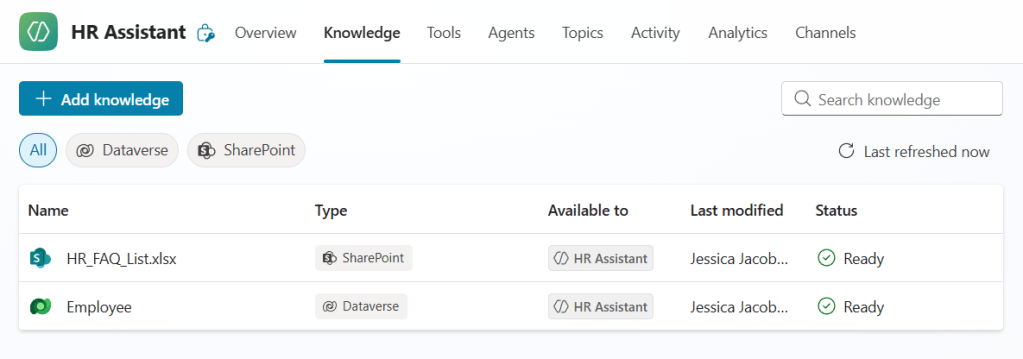
- Dataverse – as the data source for storing employee records
Table of contents
- Step 1 — Create the Employee data table
- Step 2 — Build a Canvas Power App (Employee list + details)
- Step 3 — Create flows (Create / Get)
- Step 4 — Build the Copilot Agent in Copilot Studio
- Step 5 — Test end-to-end in Power Apps
Steps
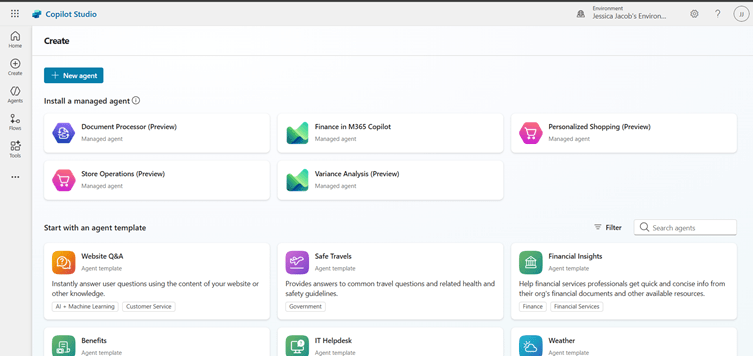
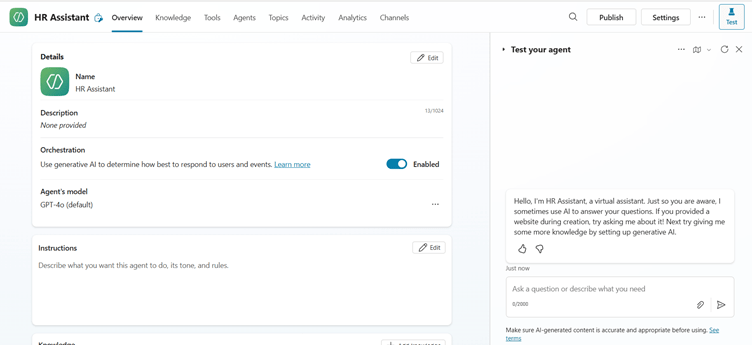
- Open Copilot Studio → Create Agent → Name: HR Assistant.
- Add an action/skill: Create Employee.
- Select action type: Select connector to call an existing flow.
- Pick the flow: CreateEmployee_Flow.
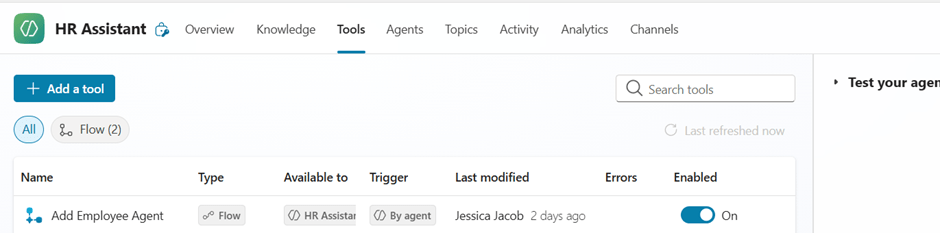
- Copilot will show the flow inputs (FullName, Email, Department, Phone) — map the agent slots to these inputs.
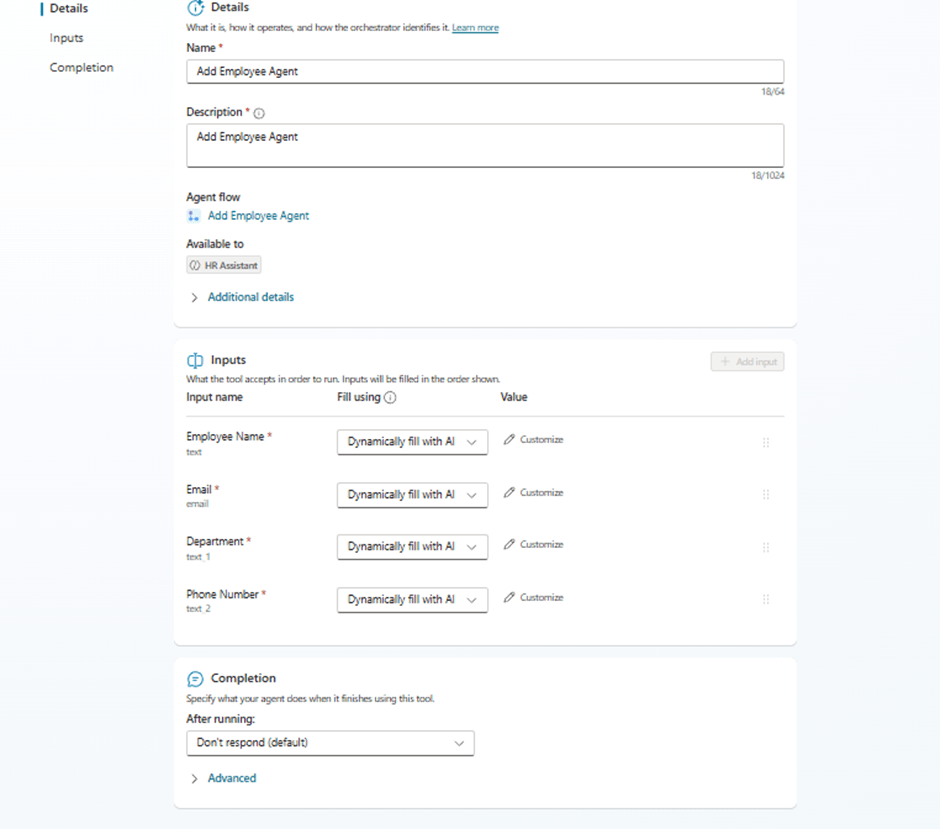
- Define agent slots/variables:
- fullName → text, required
- email → text, optional
- department → text, required (recommend adding allowed values HR, IT, Operations, Finance)
- phone → text, optional
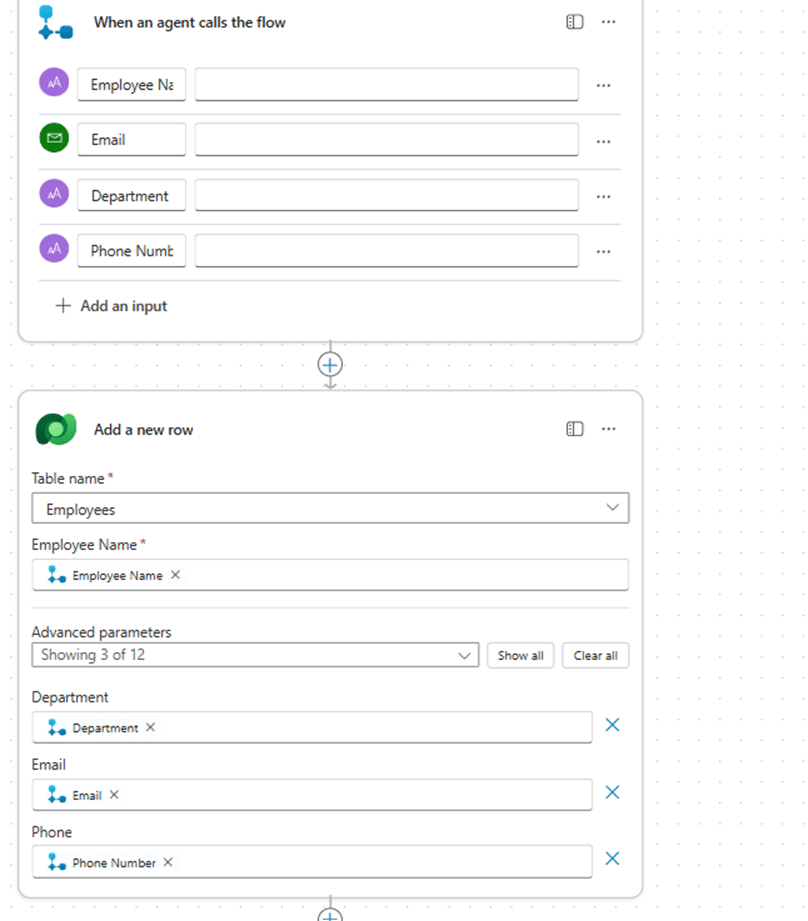
- Provide training utterances:
- “Add new employee John Smith in IT with email john@contoso.com, phone 99999”
- “Create employee Priya, department Finance”
- “Add employee Rohit Kumar”
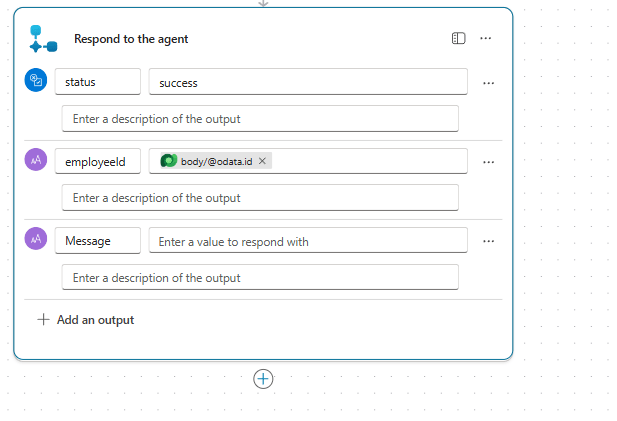
- Configure the action’s success response: Use the flow outputs to show a friendly confirmation like:
- “Employee John Smith (ID E1234) created successfully.”
Test end-to-end in Power Apps
Steps
- Open your Canvas app that has the Copilot control or open the Copilot test window in Copilot Studio.
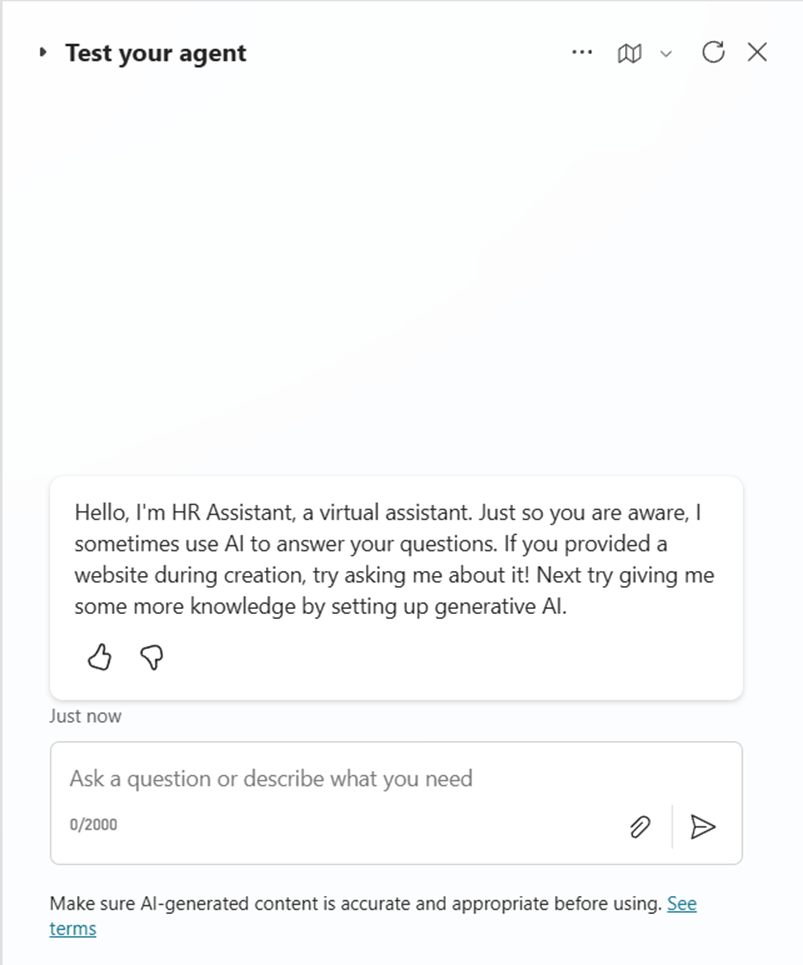
- Example test utterance:
“Add a new employee named John Doe in IT, email john@xyz.com, phone9876543210”.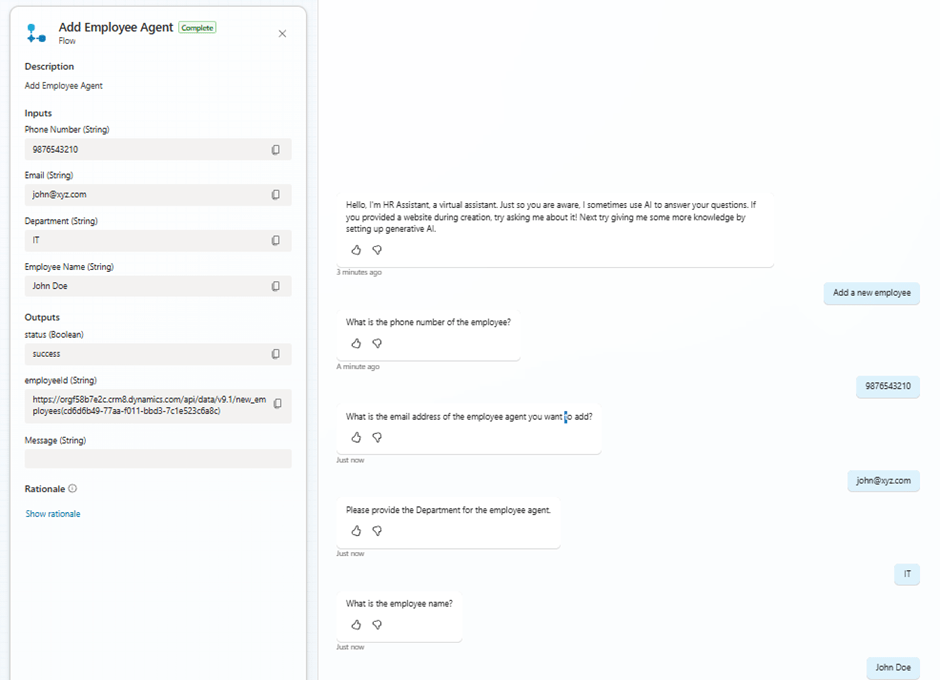
- Copilot will:
- Parse the utterance into slots (fullName, department, email, phone)
- Call CreateEmployee_Flow with mapped inputs
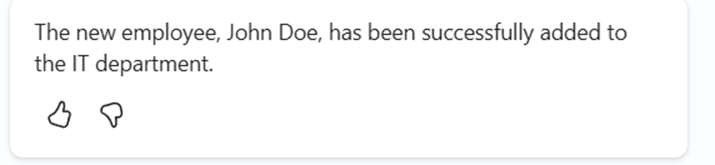
- Read the flow output and display a confirmation message in chat
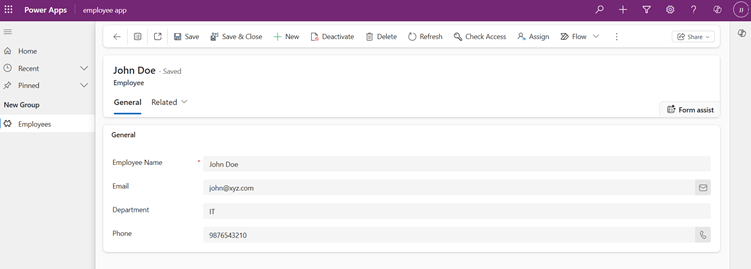
- In Power Apps, press Refresh (or have the Copilot/Power Automate flow trigger a push/response) so the Gallery shows the new record.
Key Features Demonstrated
- Employee Record Management
The Copilot can create or retrieve employee records directly from the Employee table in Power Apps. - Conversational Data Handling
Natural language inputs like “Add an employee in Operations department” are automatically understood and processed. - Integration
A flow triggers based on user prompts, creating or retrieve records in real time. - Instant Data Refresh
The Power Apps screen instantly refreshes to reflect the latest employee data after every action.
Workflow Overview
- The user chats with the HR Assistant Copilot within Power Apps.
- The Copilot triggers a Power Automate flow when it detects an action (e.g., create a new record).
- The flow captures details like employee name, email, department, and phone number.
- These details are added or updated in the Employee table.
- Power Apps refreshes automatically to display the updated data.
Benefits for the Company
- Increased Efficiency: Reduces time spent on manual data entry.
- Improved Accuracy: Automated validation ensures data consistency.
- Enhanced Employee Experience: Provides quick responses to HR-related queries.
- Scalable Insights: Can be integrated with Power BI for HR analytics.
Future Enhancements
- Integration with Microsoft Teams or Outlook for employee self-service.
- Addition of Power BI dashboards for real-time HR analytics.
- Implementation of approval workflows for hiring and changes.
- Expansion to manage leave requests or performance data.
Conclusion
The HR Assistant Copilot is a great example of how Microsoft’s Power Platform empowers organizations to combine AI, automation, and data in a single solution.
By making HR management conversational and intelligent, businesses can save time, reduce errors, and provide a more engaging employee experience.
This PoC marks the beginning of a smarter, AI-driven HR transformation journey.
Tags:
#PowerApps #CopilotStudio #MicrosoftCopilot #PowerPlatform #HRTech

