

 Written by
 Power Automate is a powerful tool that allows users to automate tasks and processes within Microsoft applications. One of its many useful features is the ability to populate rich text controls within a document template. Rich text control also known as content control are placeholders within a document that allow users to input and format text, images, and other media which are commonly used in document templates to ensure consistency and make it easier for users to create professional-looking documents. This can greatly enhance the user experience and streamline document creation, making it a valuable tool for businesses of all sizes.
REQUIREMENT:
In our case, we’ve employed a rich text column within the form, and now we require the transfer of the content from this column to a Word template.

fig.1
SOLUTION:
Step 1: We need to generate a template that aligns with the respective table, mapping the fields from the form accordingly.

fig.2
Step 2: Generate a fresh template and establish the corresponding mappings accordingly.
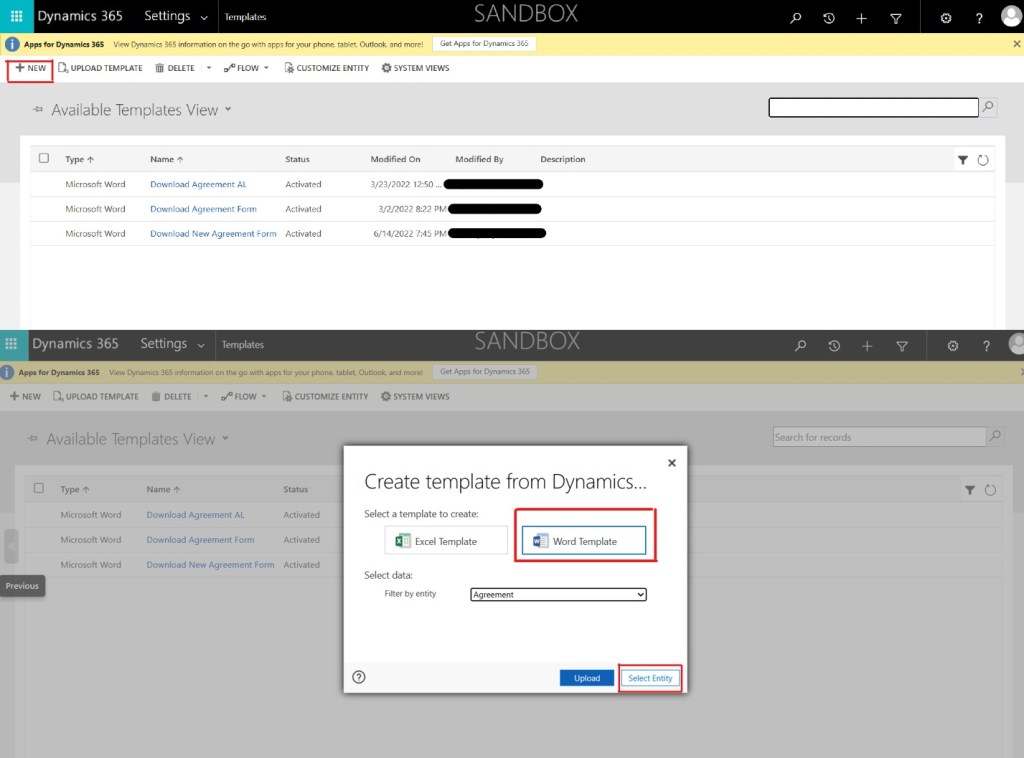
fig.3
Step 3: We need to choose the Word document and utilize the Developer tool within the template to map the fields.

fig.4
Step 4: After selecting the field, we need to make additional adjustments in the template, as illustrated in the figure below.

fig.5
Step 5: Following all the previously mentioned steps, we need to generate an Automated cloud flow. The diagram for the cloud flow is depicted below:
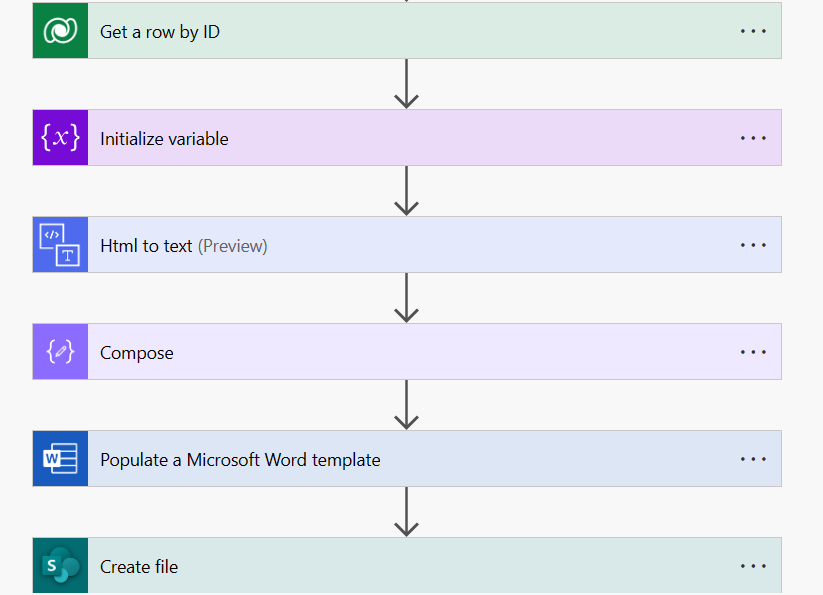
fig.6

fig.7
‘Get a row by ID’ is used to fetch the image the from the table and want to populate it into the word template.

fig.8
In this scenario, we utilize the ‘SharePoint site’ for downloading the template.
OUTPUT:
We may not achieve exact replication of the text entered into the field, as there could be minor alterations in its features, but we will ensure its delivery in the specified format. When automate runs the file will get update in the SharePoint site.

fig.9
Hope it helps!
 Dynatecon Solutions