
 Written by
 In today’s fast-paced work environment, keeping track of important deadlines like work permit expirations can be challenging. Fortunately, Microsoft Power Automate makes it easy to create flows that automate this process. In this blog post, we’ll walk through how to set up a Power Automate flow that sends alerts to employees 30 days before their work permits end.
Why Automate Alerts?
- Stay Compliant: Ensure all employees have up-to-date work permits.
- Save Time: Automate the reminder process to focus on other important tasks.
- Reduce Errors: Eliminate manual tracking that could lead to missed deadlines.
Step 1: Adding the Reminder Column
New Column Setup
- Column Creation: In your Employee table, add a new column named “Work Permit End Date Reminder” (logical name: dyn_workpermitenddatereminder).
- Purpose: This column will store the date that is 30 days before the work permit end date, allowing for easy reference in your workflows.
Step 2: Creating a Real-Time Workflow
ENG-OOB-Set Work Permit End Date Reminder Field
- Create the Workflow:
- Open your CRM or database management tool and navigate to the workflows section.
- Create a new real-time workflow named “ENG-OOB-Set Work Permit End Date Reminder Field.”
- Workflow Logic:
- Trigger: Set the workflow to trigger when the Work Permit End Date is updated or created.
- Action: Use a Calculate Date function to set the dyn_workpermitenddatereminder field to 30 days before the Work Permit End Date.
- Field Update: Update the new column with the calculated date.
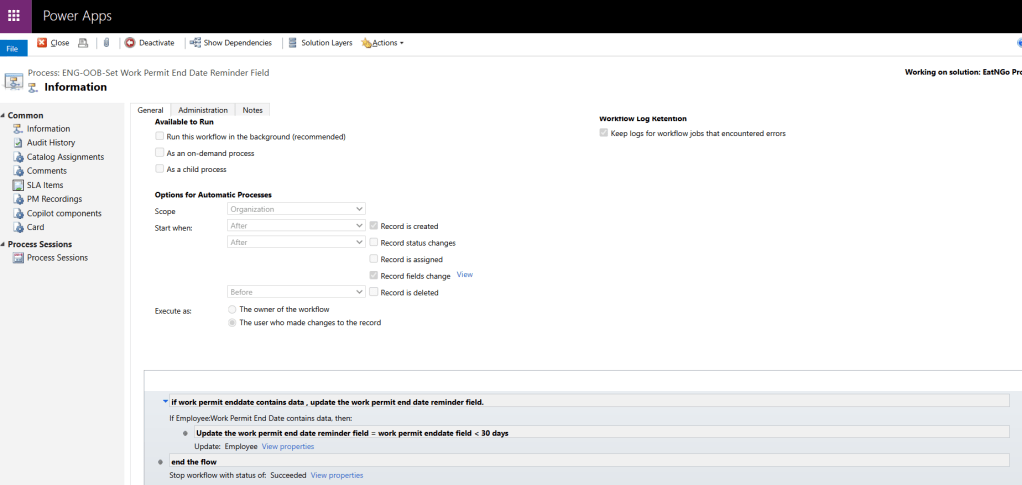
fig.1
Step 3: Setting Up the Power Automate Flow
ENG-CF – Work Permit End Date Reminder
- Trigger (Recurrence):
- Log in to Power Automate and create a new flow.
- Choose the Scheduled cloud flow option and set it to run daily at 7 AM.
- List rows – Employee Records With Work Permit End Date 30:
- Table Name:
Employee(This is connected to a data source like a database or Excel where employee records are stored.) - Filter rows: The filter condition
dyn_workpermitenddatereminder ne nullmeans the flow will fetch only the records where the “Work Permit End Date Reminder” field is not empty or null. This could indicate that the reminder date is set 30 days before the actual work permit expiration date. - The Row count field is not filled, meaning the default limit (5000 rows) is applied.
- Table Name:
- Apply to each:
- Select an output from previous steps:
valueThis loops through each employee record returned from the previous “List rows” step.
- Select an output from previous steps:
- Send an email (V2):
- This step sends an email notification for each employee whose work permit is nearing expiration, based on the filtered records.
- In summary, this flow will run daily, check for employees with work permits expiring in the next 30 days, and send an email notification for each one.
- Add an Apply to each action to loop through the filtered employee records.
- Use the Send an email (V2) action:
- To: Set to the employee’s email.
- Subject: “Reminder: Your Work Permit is Expiring Soon”
- Body: Craft a personalized message that includes the relevant details about the work permit expiration.
- Test Your Flow:
- Save and test your flow to ensure emails are sent as expected.

fig. 2
Conclusion
By implementing a new column to track reminders and leveraging both real-time workflows and Power Automate, you’ve created an efficient system for sending timely alerts about work permit expirations. This not only helps ensure compliance but also supports a proactive approach to employee management.
If you have any questions or need further assistance, feel free to reach out. Happy automating!
 Dynatecon Solutions