
 Written by
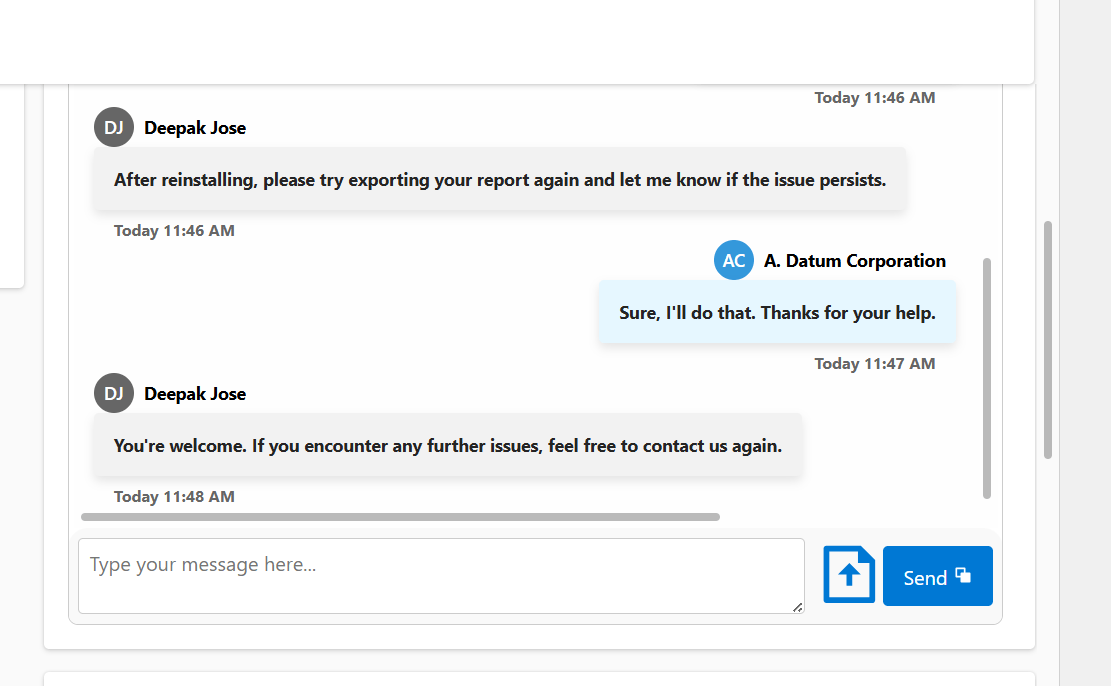
 Creating a seamless and interactive chat interface can significantly enhance user engagement in your Power Apps solutions. In this blog post, we will walk you through the steps of building a React-based chat component using Power Apps Component Framework (PCF) with a dataset template. We’ll leverage Fluent UI for styling and functionality, ensuring a polished and user-friendly experience.
Prerequisites
Before we dive in, make sure you have the following prerequisites installed:
- Visual Studio Code (VSCode) or your preferred IDE
- Node.js (LTS version for stability).
- Microsoft Power Platform CLI:
- Power Platform Tools for Visual Studio Code or Power Platform CLI for Windows.
- .NET Build Tools:
- .NET Core SDK (cross-platform .NET framework) or Visual Studio with “.NET build tools” workload.
Create a new PCF project:
Open your VSCode or your preferred IDE and use the integrated terminal to run below command.
pac pcf init --namespace ChatNamespace --name ChatComponent --template dataset
cd ChatComponent
npm install @fluentui/react react react-icons
Step 1: Configuring the Manifest
In ControlManifest.Input.xml, configure your PCF control with below code:
<?xml version="1.0" encoding="utf-8" ?>
<manifest>
  <control namespace="ChatNamespace" constructor="ChatComponent" version="1.0.0" display-name-key="ChatComponent" description-key="This PCFControl is a custom chat interface leveraging PCF, React, and Fluent UI to create a feature-rich chat component. The interface includes functionalities similar to WhatsApp, such as the ability to load previous chat messages dynamically." control-type="standard" >
    <external-service-usage enabled="false">
    </external-service-usage>
    <data-set name="Whatsapp_session" display-name-key="Whatsapp_session">
    </data-set>
    <resources>
      <code path="index.ts" order="1"/>
    </resources>
    <feature-usage>
      <uses-feature name="Device.pickFile" required="true" />
      <uses-feature name="Utility" required="true" />
      <uses-feature name="WebAPI" required="true" />
    </feature-usage>
  </control>
</manifest>
Note: It’s essential to update the ManifestTypes.d.ts file after adding the code by running the command npm run build. This step ensures that your PCF component correctly recognizes and utilizes the newly added property.
Step 2: Updating the index.ts file
In the index.ts file, modify the code as shown below and build the PCF control:
import { IInputs, IOutputs } from "./generated/ManifestTypes";
import { ChatDisplay } from "./ChatDisplay";
import * as React from "react";
import * as ReactDOM from "react-dom";
import { IChatRecord, IChatDisplayProps } from "./types";

interface IMode {
    contextInfo: {
        entityId: string;
        entityTypeName:string
        // other properties as needed
    };
}

export class ChatComponent implements ComponentFramework.StandardControl<IInputs, IOutputs> {
    private container: HTMLDivElement;
    private entityId: string = '';
    private entityType: string = '';
    private datasetEntityType: string = ''
    private currentPage: number = 1; // Current page number
    private context: ComponentFramework.Context<IInputs>;
    private cumulativeRecords: IChatRecord[] = []; // Cumulative list of records

    constructor() {    //Methods onNextPage, onPreviousPage, and loadFirstPage are bound to this in the constructor.
        this.onNextPage = this.onNextPage.bind(this);
        // this.onPreviousPage = this.onPreviousPage.bind(this);
        this.loadFirstPage = this.loadFirstPage.bind(this);
    }

    public init(
        context: ComponentFramework.Context<IInputs>,
        notifyOutputChanged: () => void,
        state: ComponentFramework.Dictionary,
        container: HTMLDivElement
    ): void {
        this.container = container;

        const modeUnknown = context.mode as unknown;
        const entityId = (modeUnknown as IMode)?.contextInfo?.entityId;
        const entityType = (modeUnknown as IMode)?.contextInfo?.entityTypeName;

        if (entityId && entityType) {
            this.entityId = entityId;
            this.entityType = entityType
            // console.log("Entity ID retrieved:", this.entityId,"entity Type is :",entityType);
        } else {
            console.warn("Entity ID not found in contextInfo.");
        }
    }

    public updateView(context: ComponentFramework.Context<IInputs>): void {
        this.context = context;
        this.renderControl(context); // Update rendering on context change
    }

    private onNextPage = async (): Promise<void> => {
        try {
            if (this.context.parameters.Whatsapp_session.paging.hasNextPage) {
                const nextPage = this.currentPage + 1;
                this.context.parameters.Whatsapp_session.paging.loadExactPage(nextPage);
                this.currentPage = nextPage; // Update currentPage after loading
                this.renderControl(this.context);
            }
        } catch (error) {
            console.error('Error in onNextPage:', error);
        }
    };

    private loadFirstPage = async (): Promise<void> => {
        try {
            this.context.parameters.Whatsapp_session.paging.reset();
            this.currentPage = 1;
            this.cumulativeRecords = []; // Clear cumulative records on first page load
            this.renderControl(this.context);
        } catch (error) {
            console.error('loadFirstPage', error);
        }
    };
//Adding Pagination and Fetching Records including attachment id
private getFileTypeFromFileName(fileName: string): string {
    // Extract file extension
    const fileExtension = fileName.split('.').pop()?.toLowerCase() || '';

    // Determine file type based on extension
    switch (fileExtension) {
        case 'pdf':
            return 'application/pdf';
        case 'doc':
        case 'docx':
            return 'application/msword';
        case 'xls':
        case 'xlsx':
            return 'application/vnd.ms-excel';
        case 'ppt':
        case 'pptx':
            return 'application/vnd.ms-powerpoint';
        case 'png':
            return 'image/png';
        case 'jpg':
        case 'jpeg':
            return 'image/jpeg';
        case 'gif':
            return 'image/gif';
        case 'bmp':
            return 'image/bmp';
        case 'tiff':
            return 'image/tiff';
        case 'webp':
            return 'image/webp';
        case 'svg':
            return 'image/svg+xml';
        // Add more cases for other file types as needed
        default:
            return 'application/octet-stream'; // Default to generic binary type
    }
}


private fetchRecords = async (): Promise<IChatRecord[]> => {
    const dataset1 = this.context.parameters.Whatsapp_session;
    const paginatedRecordIds = dataset1.sortedRecordIds.slice(0, dataset1.paging.pageSize);
    const records: IChatRecord[] = [];

        for (const id of paginatedRecordIds) {
            const record = dataset1.records[id];
            const AttachmentId = record.getFormattedValue("dyn_attachment");

            // Initialize variables for attachment data
            let fileName = '';
            let fileType = '';

            if (AttachmentId) {
                try {
                    const fileResponse = await this.context.webAPI.retrieveRecord('dyn_wappmessage', record.getRecordId());

                    if (fileResponse) {
                        fileName = fileResponse.dyn_attachment_name;
                        fileType = this.getFileTypeFromFileName(fileName);

                    }
                } catch (error) {
                    console.error('Error fetching attachment data:', error);
                    // Handle error as appropriate
                }
            }

            // Create IChatRecord object
            records.push({
                id: record.getRecordId(),
                from: record.getFormattedValue("from"),
                to: record.getFormattedValue("to"),
                description: record.getFormattedValue("description"),
                createdon: record.getFormattedValue("createdon"),
                dyn_direction: record.getFormattedValue("dyn_direction"),
                dyn_attachment: AttachmentId || null, // Use null if no attachment
                fileName: fileName,
                fileType: fileType,
                // Add other fields as needed
            });
        }
        return records;
    };

    private renderControl = async (context: ComponentFramework.Context<IInputs>): Promise<void> => {
            const dataset1 = context.parameters.Whatsapp_session;
        if (!dataset1.loading) {
            try {
                const newRecords = await this.fetchRecords();
                this.cumulativeRecords = [...this.cumulativeRecords, ...newRecords];
                const columns1 = dataset1.columns;
                this.datasetEntityType = dataset1.getTargetEntityType();

                const props: IChatDisplayProps = {
                    context: context,
                    columns: columns1,
                    records: this.cumulativeRecords,
                    entityId: this.entityId,
                    formEntityType: this.entityType,
                    datasetEntityType: this.datasetEntityType,
                    loadFirstPage: this.loadFirstPage,
                    hasNextPage: dataset1.paging.hasNextPage,
                    currentPage: this.currentPage,
                    onNextPage: this.onNextPage,
                    // onPreviousPage: this.onPreviousPage
                };

                ReactDOM.render(
                    React.createElement(ChatDisplay, props),
                    this.container
                );
            } catch (error) {
                console.error('Error rendering control:', error);
                // Handle error as appropriate
            }
        }
    }

    public getOutputs(): IOutputs {
        return {}; // Implement output handling if needed
    }

    public destroy(): void {
        ReactDOM.unmountComponentAtNode(this.container);
    }
}
Step 3: Defining Types
In types.ts, define the necessary types for your chat component:
import { IInputs } from "./generated/ManifestTypes";

export interface IChatRecord {
    id: string;
    from: string;
    to: string;
    description: string;
    createdon: string;
    dyn_direction: string;
    dyn_attachment: string | null;
    fileName: string;
    fileType: string;
    // Add other fields as needed
}

export interface IChatDisplayState {
    newMessage: string;
    selectedFile: File | null;
    fileName: string | '';
    fileData: string | '';
    fileTypes: string | '';
    isLoading: boolean;
    shouldScrollToBottom: boolean; // Add a flag for scrolling
}
export interface IChatDisplayProps {
    columns: ComponentFramework.PropertyHelper.DataSetApi.Column[];
    records: IChatRecord[];
    context: ComponentFramework.Context<IInputs>;
    entityId: string | undefined;
    formEntityType: string | undefined;
    datasetEntityType: string | undefined;
    hasNextPage: boolean;
    currentPage: number;
    onNextPage:() => void
    loadFirstPage:() => void
}
Step 4: Implementing the Chat Display
Create the file ChatDisplay.tsx in the PCF-Control. In ChatDisplay.tsx, implement the main chat interface:
import * as React from 'react';
import { Persona, PersonaSize } from '@fluentui/react/lib/Persona';
import { RiFileUploadLine, RiSendBackward ,RiSendToBack, RiFileDownloadFill , RiCloseLine} from 'react-icons/ri';
import { PrimaryButton } from '@fluentui/react';
import { Spinner, SpinnerSize } from '@fluentui/react';
import "./Chat.css";
import { IChatDisplayState , IChatDisplayProps } from "./types";

export class ChatDisplay extends React.Component<IChatDisplayProps, IChatDisplayState> {
    private containerRef: React.RefObject<HTMLDivElement>;
    private fileInputRef: React.RefObject<HTMLInputElement>;

    constructor(props: IChatDisplayProps) {
        super(props);
        this.state = {
            newMessage: '',
            selectedFile: null,
            fileName: '',
            fileData: '',
            fileTypes: '',
            isLoading: false,
            shouldScrollToBottom: true, // Add a flag for scrolling
        };
        this.containerRef = React.createRef<HTMLDivElement>();
        this.fileInputRef = React.createRef<HTMLInputElement>();
    }
    componentDidMount() {
        // Scroll to the bottom of the container after initial render
        this.scrollToBottom();
    }

    componentDidUpdate(prevProps: IChatDisplayProps) {
        if (prevProps.records !== this.props.records && this.state.shouldScrollToBottom) {
            this.scrollToBottom();
            this.setState({ shouldScrollToBottom: false });
        }
    }

    scrollToBottom = () => {
        if (this.containerRef.current) {
            this.containerRef.current.scrollTop = this.containerRef.current.scrollHeight;
        }
    };
    handleNextPage = () => {
            this.props.onNextPage();
            this.setState({ shouldScrollToBottom: false });
    };

// Function to format date as "Today", "Yesterday", or actual date
formatDate(dateString: string | null | undefined): string {
    if (!dateString) return 'N/A';

    const messageDate = new Date(dateString);
    const today = new Date();
    const yesterday = new Date(today);
    yesterday.setDate(yesterday.getDate() - 1);

    if (messageDate.toDateString() === today.toDateString()) {
        return `Today ${messageDate.toLocaleTimeString('en-US', { hour: 'numeric', minute: 'numeric' })}`;
    } else if (messageDate.toDateString() === yesterday.toDateString()) {
      return `Yesterday ${messageDate.toLocaleTimeString('en-US', { hour: 'numeric', minute: 'numeric' })}`;
    } else {
      return messageDate.toLocaleDateString('en-US', {
        year: 'numeric',
        month: 'short',
        day: 'numeric',
        hour: 'numeric',
        minute: 'numeric'
      });
    }
  }

  handleInputChange = (event: React.ChangeEvent<HTMLTextAreaElement>) => {
    this.setState({ newMessage: event.target.value });
};
handleFileChange = (event: React.ChangeEvent<HTMLInputElement>) => {
    const file = event.target.files ? event.target.files[0] : null;
    if (file) {
        this.setState({
            selectedFile: file,
            fileName: file.name,
            fileTypes:file.type
        });
        this.readFileData(file);
    }
    // Reset the file input value
    if (this.fileInputRef.current) {
        this.fileInputRef.current.value = '';
    }
};
readFileData = (file: File) => {
    const reader = new FileReader();
    reader.onloadend = () => {
        const dataUrl = reader.result as string;
        const base64Content = dataUrl.split(',')[1]; // Extract base64 content
        this.setState({
            fileData: base64Content,
        });
    };
    reader.readAsDataURL(file);
};

handleSendClick = async () => {
    const { newMessage, fileName, fileData ,fileTypes } = this.state;
    const { context, entityId , formEntityType, datasetEntityType ,loadFirstPage } = this.props;

    console.log("filesize",fileTypes);
    console.log("filname",fileName);
    console.log("filData",fileData);
    if (newMessage.trim() !== '' || (fileName && fileData && fileTypes)) {
        this.setState({ isLoading: true }); // Start loading
        try {
            // Fetch activity parties
            const query = `?$filter=_activityid_value eq '${entityId}' and (participationtypemask eq 1 or participationtypemask eq 2)`;
            const fetchedRecords = await context.webAPI.retrieveMultipleRecords("activityparty", query);
            // console.log("Fetched Records:", fetchedRecords);

            let fromResult: { guildId: string; entityType: string } = { guildId: '', entityType: '' };
            let toResult: { guildId: string; entityType: string } = { guildId: '', entityType: '' };

            // Function to check guildId against systemuser and account entities
            const checkGuild = async (guildId: string): Promise<{ guildId: string; entityType: string }> => {
                const entities = ['systemuser', 'account'];
                for (const entity of entities) {
                    try {
                        const fetchedRecord = await context.webAPI.retrieveRecord(entity, guildId);
                        if (fetchedRecord) {
                            return { guildId, entityType: entity };
                        }
                    } catch (error) {
                        console.error(`Error fetching from ${entity}: ${error}`);
                    }
                }
                return { guildId, entityType: '' }; // If not found, entityType will be an empty string
            };

            // Process fetchedRecords to determine fromGuild and toGuild
            fetchedRecords.entities.forEach(record => {
                if (record.participationtypemask === 1) {
                    fromResult.guildId = record._partyid_value;
                } else if (record.participationtypemask === 2) {
                    toResult.guildId = record._partyid_value;
                }
            });

            // Check From Guid
            fromResult = await checkGuild(fromResult.guildId);
            // Check To Guid
            toResult = await checkGuild(toResult.guildId);

            // Create new record
            const newRecord = {
                dyn_direction: 2,
                description: '',
                "dyn_sessionid_dyn_wappmessage@odata.bind": `/${formEntityType}s(${entityId})`,
                "dyn_wappmessage_activity_parties": [
                    {
                        [`partyid_${fromResult.entityType}@odata.bind`]: `/${fromResult.entityType}s(${fromResult.guildId})`,
                        participationtypemask: 1
                    },
                    {
                        [`partyid_${toResult.entityType}@odata.bind`]: `/${toResult.entityType}s(${toResult.guildId})`,
                        participationtypemask: 2
                    }
                ]
            };

            if (newMessage.trim() !== '') {
                newRecord.description = newMessage;
            }
            // Create the record and capture the response
            const createdRecord = await context.webAPI.createRecord(`${datasetEntityType}`, newRecord);
            const recordId = createdRecord.id;
            // console.log('Created record ID:', recordId);
            if(fileName && fileName && recordId){//if fileName and fileData is added and recordid is created
            //File Upload using power automate
            const input = JSON.stringify({
                "messageid": recordId,
                "fileName": fileName,
                "fileData": fileData,
                "fileType": fileTypes
            });
            try {
                const uploadUrl = `<Enter Your Power automate URL for upload>`;

                // POST the file data
                const response = await fetch(uploadUrl, {
                    method: 'POST',
                    headers: {
                        'Content-Type': 'application/json',
                    },
                    body: input
                });

                if (response.ok) {
                    const jsonResponse = await response.json();
                    const resMessage = jsonResponse.response;
                    console.log(resMessage);

                } else {
                    console.error('Error uploading file:', response.statusText);
                }
            } catch (error) {
                console.error('Error uploading file:', error);
            }
        }
            // Refresh the dataset to get the latest records
            context.parameters.Whatsapp_session.refresh();
            loadFirstPage();
            // Optionally, you can perform actions after the refresh if needed
            console.log("Record created successfully and dataset refreshed.");
            // Reset newMessage state
            this.setState({
                newMessage: '',
                fileName: '',
                fileData: '',
                fileTypes: ''
            });
        } catch (error) {
            console.error('Error in handleSendClick:', error);
        }finally {
            this.setState({ isLoading: false,shouldScrollToBottom: true }); // Stop loading
        }
    }
};

clearFile = () => {
    this.setState({
        selectedFile: null,
        fileName: '',
        fileData: '',
        fileTypes: ''
    });
    // Reset the file input value
    if (this.fileInputRef.current) {
        this.fileInputRef.current.value = '';
    }
};
// Function to download file based on record id and file name
downloadFile = async (recordId: string, filename: string, filetype: string) => {
    const input = JSON.stringify({
        "messageid": recordId
    });
    try {
        // Construct the download URL based on your environment
        const downloadUrl = `<Enter Your Power automate URL for download>`;

        // Fetch the file data
        const response = await fetch(downloadUrl, {
            method: 'POST',
            headers: {
                'Content-Type': 'application/json',
            },
            body: input
        });

        if (response.ok) {
            // Convert response to blob
            const jsonResponse = await response.json();
            // Create URL for the blob
            const fileData = jsonResponse.file;
            const mimeType = filetype;
            // Convert Base64 string to Uint8Array
            const byteCharacters = atob(fileData);
            const byteNumbers = new Array(byteCharacters.length);
            for (let i = 0; i < byteCharacters.length; i++) {
                byteNumbers[i] = byteCharacters.charCodeAt(i);
            }
            const byteArray = new Uint8Array(byteNumbers);

            // Create a Blob from the file content with the determined MIME type
            const blob = new Blob([byteArray], { type: mimeType });
            const blobUrl = URL.createObjectURL(blob);
            // Create a link element
            const link = document.createElement('a');
            link.href = blobUrl;
            link.target = '_blank'; // Open in a new tab
            link.download = filename; // Set the file name for download
            link.click();
        } else {
            console.error('Error downloading file:', response.statusText);
        }
    } catch (error) {
        console.error('Error downloading file:', error);
    }
};

    public render(): React.ReactNode {
        const { records, currentPage, hasNextPage} = this.props;
        const paginatedRecords = [...records].reverse(); // Use spread operator to avoid mutating props
        const { isLoading } = this.state;
        return (
            <div className='chat-container'>
                <PrimaryButton onClick={this.handleNextPage}
                style={{ display: hasNextPage ? 'inline-block' : 'none' }}
                >Load Previous Chats</PrimaryButton>
            <div className='chat' ref={this.containerRef}>
                {paginatedRecords.length === 0 ? (
                    <div className="no-messages">
                        <p>No messages yet. Start the conversation!</p>
                    </div>
                ) : (
                    paginatedRecords.map((record, index) => (
                        <div key={index} className={record.dyn_direction === 'Inbound' ? 'left' : 'right'}>
                            <Persona
                                className="persona"
                                initialsColor={
                                    record.dyn_direction === 'Outbound' ? '#3498db' :
                                    record.dyn_direction === 'Inbound' ? '#666666' :
                                    '#666666' // Fallback color if neither condition matches
                                }
                                size={PersonaSize.size32}
                                text={record.from ?? 'Unknown'}
                                styles={{
                                    primaryText: {
                                        color: 'black',
                                        fontWeight: 'bold'
                                    }
                                }}
                            />
                            <div className="chat-message">
                            {record.fileName && (
                                <b className='attachment'><RiFileDownloadFill onClick={() => this.downloadFile(record.id,record.fileName,record.fileType)} size={30} style={{ cursor: 'pointer'}}/> {record.fileName?? ''}</b>
                                 )}
                                 {record.fileName && <br/>}
                                <b>{record.description ?? ''}</b>
                            </div>
                            <b className="time">{this.formatDate(record.createdon) ?? ''}</b>
                        </div>
                    ))
                )}
            </div>
            {/* <PrimaryButton onClick={this.handlePreviousPage} style={{ display: currentPage === 1 ? 'none' : 'inline-block' }}>Load Next Chats</PrimaryButton> */}
            {this.state.fileName && (
                        <div className="selected-file-name">
                            {this.state.fileName}
                            <RiCloseLine className="clear-file-icon" onClick={this.clearFile} />
                        </div>
                    )}
            <div className='new-message'>
                <textarea
                    className="chat-textarea"
                    placeholder="Type your message here..."
                    value={this.state.newMessage}
                    onChange={this.handleInputChange}
                />
                <label className="upload-button">
                <RiFileUploadLine size={55} style={{ color: '#0078d4' , transition: 'color 0.3s', cursor: 'pointer'}} />
                <input type="file" onChange={this.handleFileChange} style={{ display: 'none' }} ref={this.fileInputRef}/>
                </label>
                <button onClick={this.handleSendClick} className="chat-button" disabled={isLoading}>{isLoading ? (
                            <Spinner size={SpinnerSize.medium} />
                        ) : (
                            <>Send <RiSendBackward /></>
                        )}
                        </button>
            </div>
        </div>
        );
    }
}
Step 5: Styling the Chat Interface
In Chat.css, add the necessary styles:
:root {
  font-size: 16px;
}

.chat-container {
  width: 99%;
  height: 100%;
  max-height: 37.5rem;
  display: flex;
  flex-direction: column;
  justify-content: center;
  align-items: center;
  overflow: hidden;
  position: relative;
  border: 1px solid #ccc; /* Add border around chat-container */
  border-radius: 8px;
  /* padding: 1rem; */
}
.no-messages {
  display: flex;
  justify-content: center;
  align-items: center;
  height: 100%; /* Ensures it takes full height of the chat container */
  color: #666666; /* Example text color */
  font-size: 1.5rem; /* Example font size */
  font-weight: bold;
  text-align: center;
  /* padding: 2rem;  */
}

.chat {
  flex: 1;
  width: 99%;
  height: 100%;
  padding: 1rem;
  box-sizing: border-box;
  display: flex;
  flex-direction: column;
  gap: 1.5rem;
  overflow-y: auto;
  /* border: 1px solid #ccc;
  border-radius: 8px; */
  background-color: #fefefe;
}

.left, .right {
  display: flex;
  flex-direction: column;
  align-items: flex-start;
  position: relative;
}

.left {
  align-self: flex-start;
  margin-right: auto;
}

.right {
  align-self: flex-end;
  margin-left: auto;
  align-items: flex-end;
}

.persona-container {
  margin-bottom: 0.5rem;
}


.chat-message {
  display: block;
  width: fit-content;
  padding: 1rem;
  max-width: 37.5rem;
  border-radius: 0.25rem;
  box-shadow: 0 0.25rem 0.5rem rgba(0, 0, 0, 0.1);
  background-color: white;
  position: relative;
  word-wrap: break-word;
  white-space: pre-wrap;
  overflow-wrap: break-word;
}

.chat-message b:nth-child(2) {
  display: inline; /* Ensures paragraphs stay within the chat message block */
  margin: 0;
  padding: 1rem;

}

.left .chat-message {
  background-color: #f2f2f2;
}

.right .chat-message {
  background-color: #e6f7ff;
  /* text-align: right; */
}

.left .time {
  font-size: 0.8rem;
  color: #666;
  position: absolute;
  bottom: -1.5rem;
  left: 1rem;
}

.right .time {
  font-size: 0.8rem;
  color: #666;
  position: absolute;
  bottom: -1.5rem;
  right: 1rem;
}

.new-message {
  width: 98%;
  display: flex;
  align-items: center;
  padding: 0.5rem;
  border-radius: 1rem 1rem 0.5rem 0.5rem;
  background-color: #f9f9f9;
  position: sticky;
  bottom: 0;
  z-index: 1;
}

.new-message .chat-textarea {
  flex: 1;
  min-height: 3rem;
  max-height: 6rem;
  resize: vertical;
  margin-right: 0.5rem;
  padding: 0.5rem;
  font-size: 1rem;
  border: 1px solid #ccc;
  border-radius: 0.25rem;
  box-sizing: border-box;
}

.new-message .chat-button {
  height: 3rem;
  padding: 0 1rem;
  font-size: 1rem;
  background-color: #0078d4;
  color: white;
  border: none;
  border-radius: 0.25rem;
  cursor: pointer;
}

.new-message .chat-button:hover {
  background-color: #005a9e;
}

.attachment {
  display: flex;
  align-items: center;
  background-color: #e0e0e0;
  color: #000;
  padding: 0.5rem;
  border-radius: 0.5rem;
  box-shadow: 0 0.25rem 0.5rem rgba(0,0,0,0.1); /* 0 4px 8px converted to rem */
}
.right .attachment{
  background-color: #f0faff;
}
.left .attachment{
  background-color: #fafafa;
}
.selected-file-name {
  display: flex;
  align-items: center;
  justify-content: flex-start;
  margin-right: auto;
  margin-bottom: 0.25rem;
  margin-left: 1rem;
  font-size: 0.9rem;
  color: #333;
  background-color: #f0f0f0;
  padding: 0.5rem;
  border-radius: 0.25rem;
  text-align: center;
  box-shadow: 0 0.25rem 0.5rem rgba(0,0,0,0.1);
}

.clear-file-icon {
  color: #e81123;
  cursor: pointer;
  margin-left: 0.5rem;
}

@media (max-width: 768px) {
  .no-messages {
    font-size: 1.2rem; /* Adjust font size for smaller screens */
  }
  .new-message {
    flex-direction: column;
    align-items: stretch;
  }

  .new-message .chat-textarea, .new-message .chat-button {
    width: 100%;
    margin: 0.25rem 0;
  }

  .new-message .chat-button {
    height: 2.5rem;
  }
  .attachment {
    padding: 0.25rem;
    font-size: 0.9rem;
  }
  .selected-file-name {
    justify-content: center;
    margin-left: 0;
    padding: 0.3rem;
    font-size: 0.8rem;
}

.clear-file-icon {
    margin-left: 0.25rem;
    font-size: 0.9rem;
}
}
Step 6: Creating a Solution Package
With your PCF control built, it’s essential to package it correctly. Open the terminal, change the directory into the solution folder, and run the following command to create a solution package for your PCF control:
pac solution init --publisher-prefix your_prefix --publisher-name your_name
Replace your_prefix and your_name with the appropriate publisher prefix and publisher name.
Step 7: Adding the PCF Control to the Solution
With your PCF control built, it’s essential to package it correctly. Open the terminal, change the directory into the solution folder, and run the following command to create a solution package for your PCF control:
pac solution add-reference --path ./your_control_folder
Replace your_control_folder with the actual folder path where your PCF control is located.
step 8: Build the solution Zip File
Open the Visual Studio developer command prompt and change the directory into the solution folder. Run the following command to build the solution zip file:
For an unmanaged debug solution:
msbuild /t:build /restore
For a managed release solution:
msbuild /p:configuration=Release
Demo

GitHub Repository
Explore our GitHub repository here for a hands-on experience with the Chat Interface PCF control.
Conclusion
By following these steps, you can create a dynamic and interactive chat interface using PCF, React, and Fluent UI. This setup provides a robust foundation for further customization and enhancements, such as adding file uploads, read receipts, and more complex message handling.
Feel free to experiment and expand on this basic setup to fit your specific requirements. Happy coding!
 Dynatecon Solutions