
 Written by
 This blog shares an idea about a standard feature in power apps, which can be used for setting up appointment invites from power apps. These appointments created will also be reflected in your event calendars which makes it easier for you to join the meetings directly from there.
This interesting feature was recently implemented for a Healthcare app, for setting up their client’s rounds meeting series from power apps.
Use Case: When the Healthcare app’s admin user being the organizer creates an appointment from power apps, calendar invites will be sent to all the users as well as non-users selected in the required attendee’s field on the appointment form.
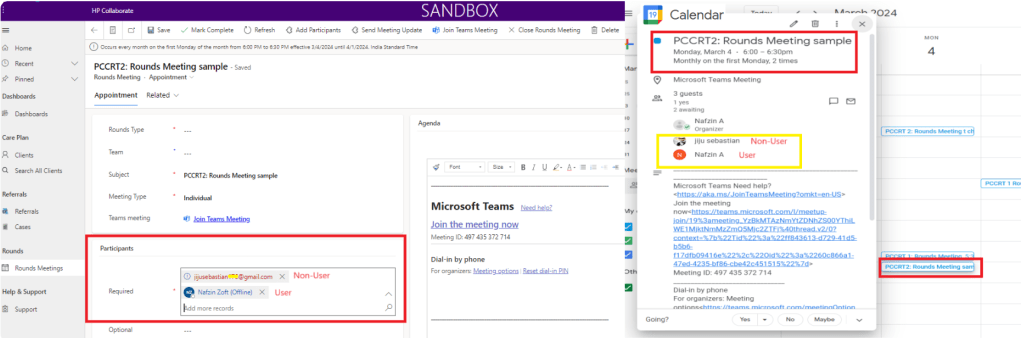
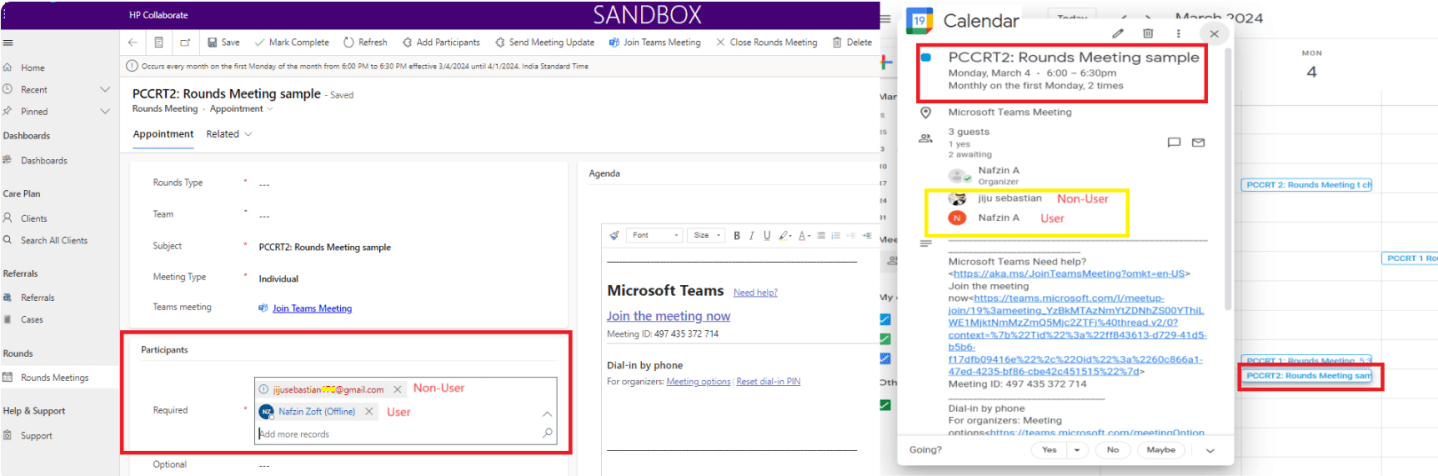
In Fig.1, you can see the Appointment form in Power Apps (left) and the Recipients Event Calendar with meeting invites(right).
How to Enable Mailbox Settings in Power Apps for Sending Appointment Invites
Firstly, for the calendar invites to be sent or received to the recipient’s mail address, the organizer or admin user’s mailbox settings need to be enabled as shown:
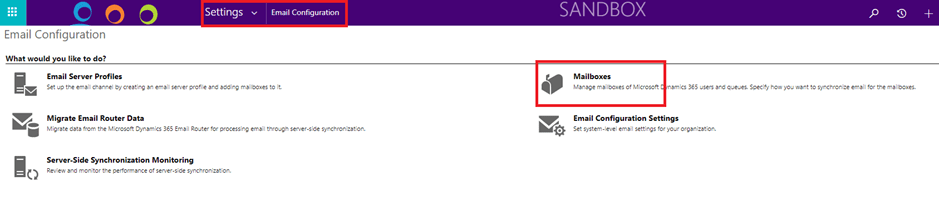
1. In MS Dynamics, from the Settings > Email Configuration > Mailboxes section, you can enable these options.
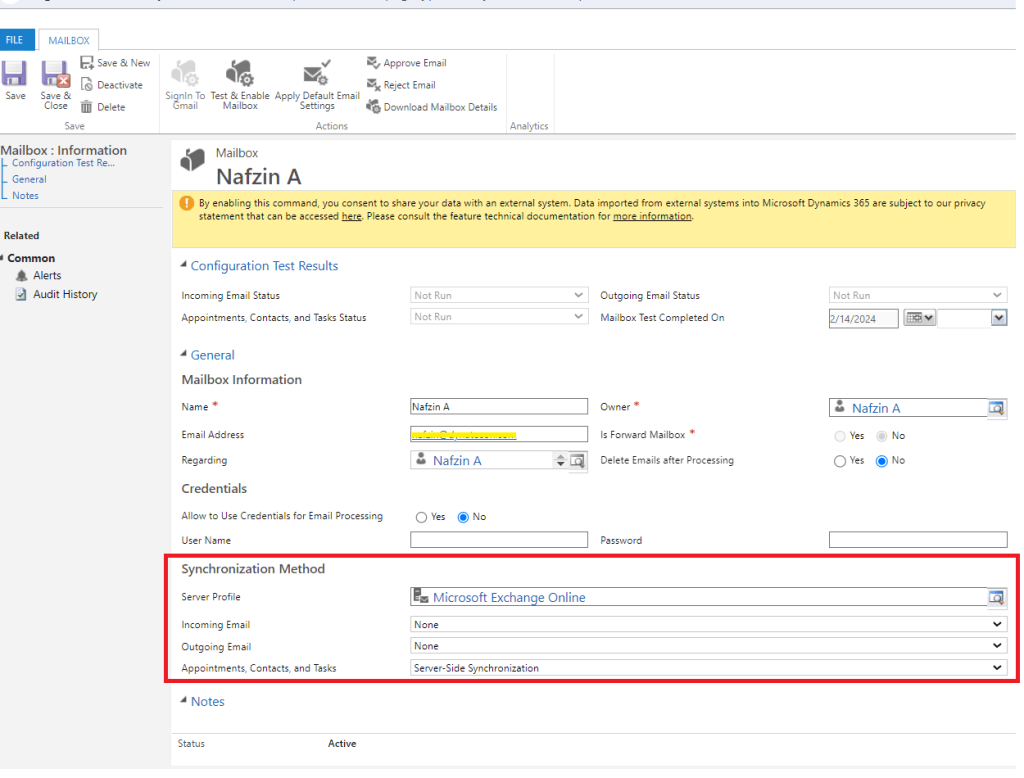
2. From the Mailboxes area, open the app’s admin user’s mailbox record and set the options to the following as given below (Fig.3). You can ‘Save’ the record after it’s done.
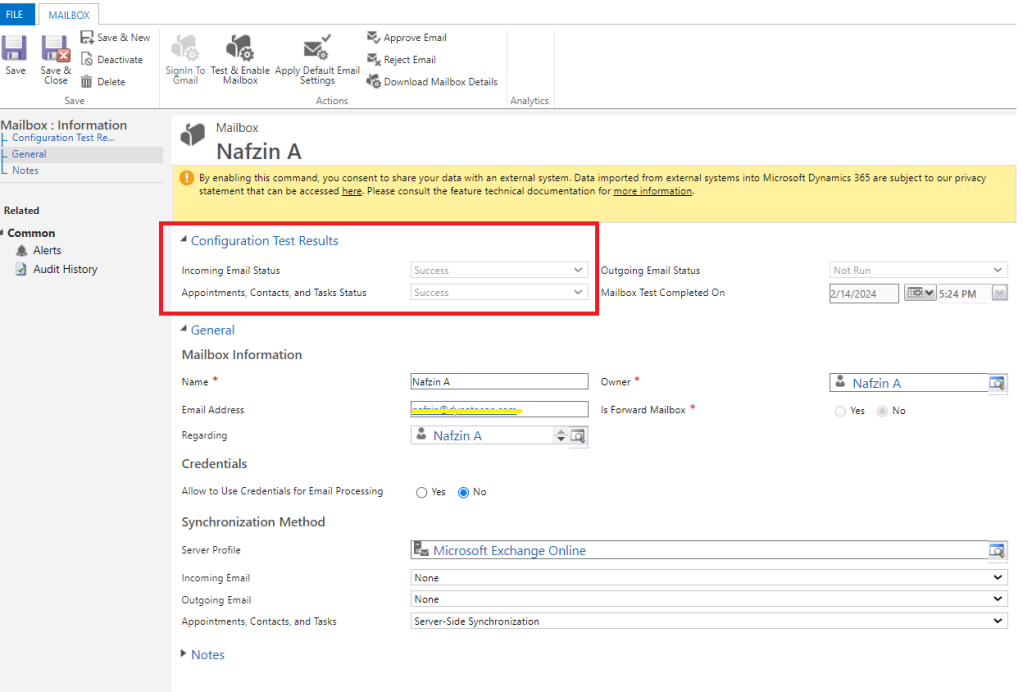
Also, you need to make sure that your “Incoming Email” and “Appointments, Contacts, and Tasks” are synced correctly and in Success-State.
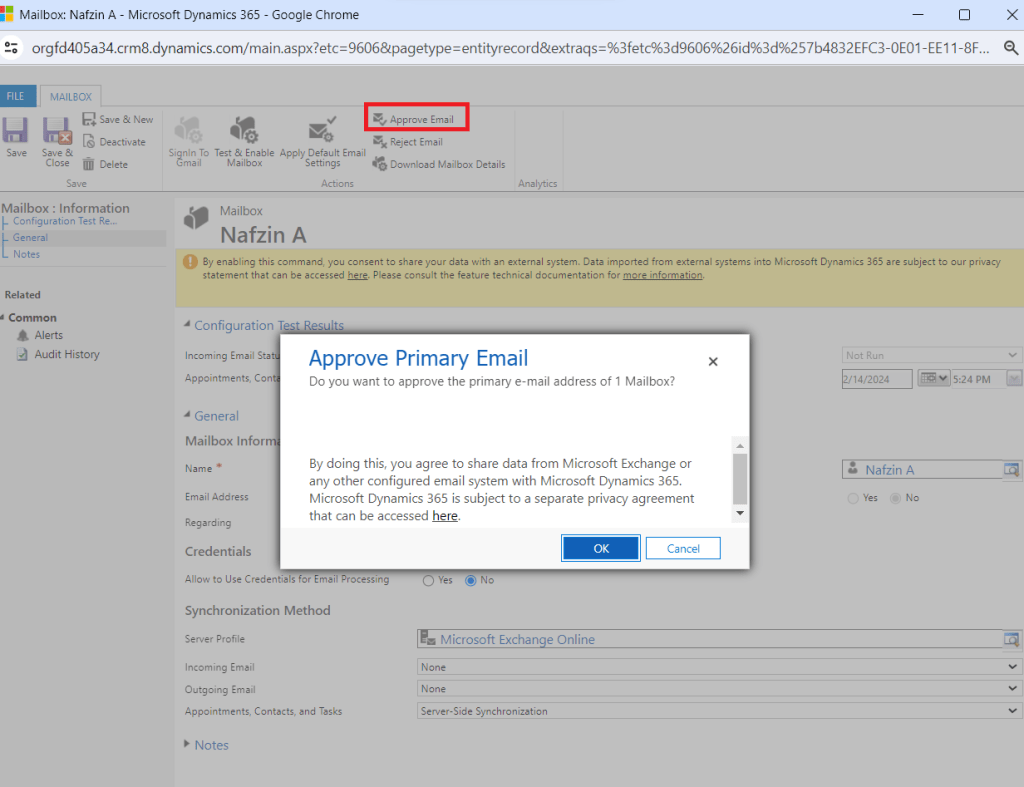
3. For that, you need to approve the mail first, by clicking on the ‘Approve Email’ option on top.
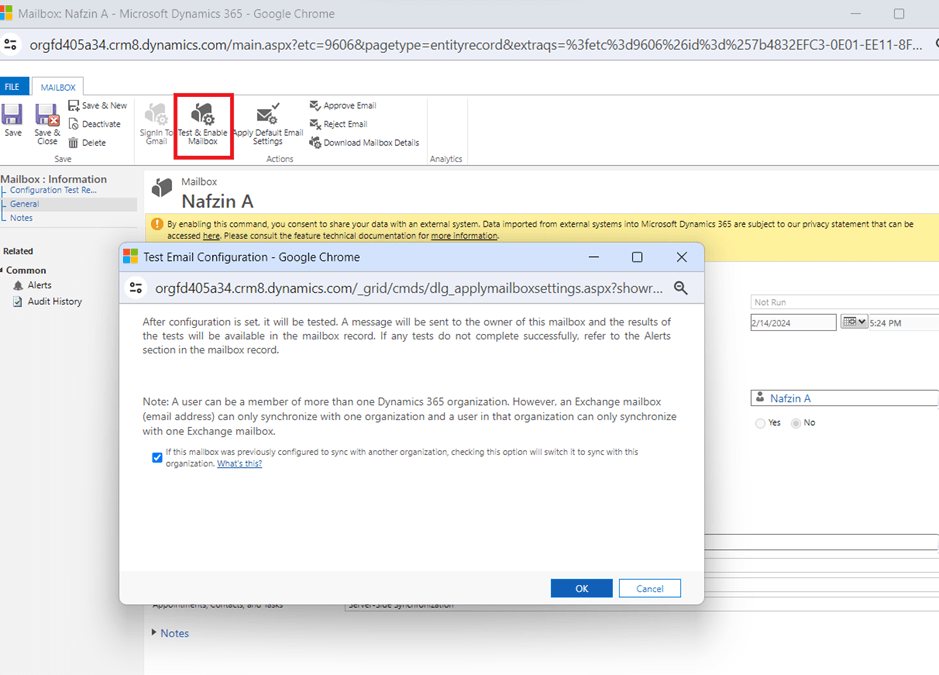
4. After it’s approved, you can then click on the ‘Test and Enable Mailbox’ button on top to enable the mailbox.
Once these actions are done, you can ensure the sync status of “Incoming Email” and “Appointments, Contacts, and Tasks” are correctly set to the Success state as depicted below.
How to Send Appointment Invites to Non-Users from Power Apps
To achieve this, firstly you need to enable this out-of-box option in the Settings > Administration > System Settings section in Dynamics (Fig.7).
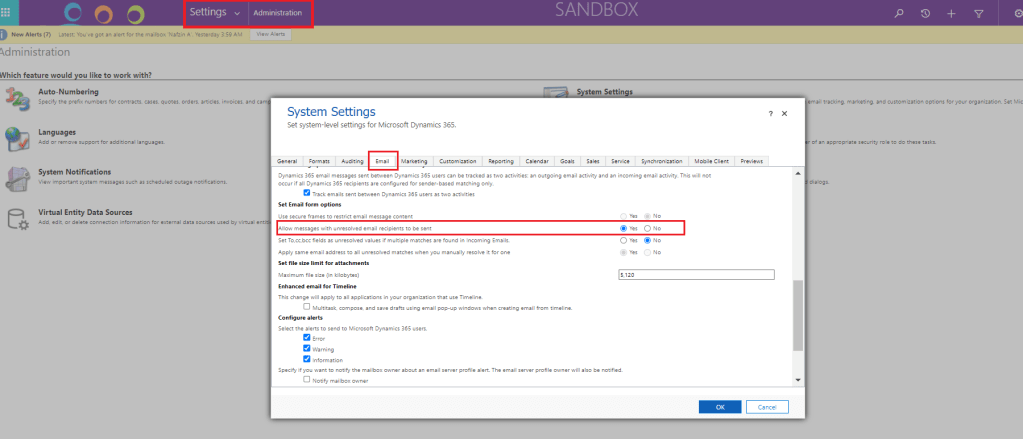
Once it’s enabled, you will be able to simply type in the non-user’s email address as given in the required attendee’s field on the appointment form (Fig.8), which will send calendar invites to them as well.

Implementation:
To see how it works:
1. In the healthcare app, you can open the Rounds Meeting (Appointment) form to set up a recurring meeting series where a user and non-user account is added as recipients in the required attendees list.

2. Now, after the necessary details are added and the recurring series is set – all the recipients added as meeting attendees will receive the meeting series calendar invites.
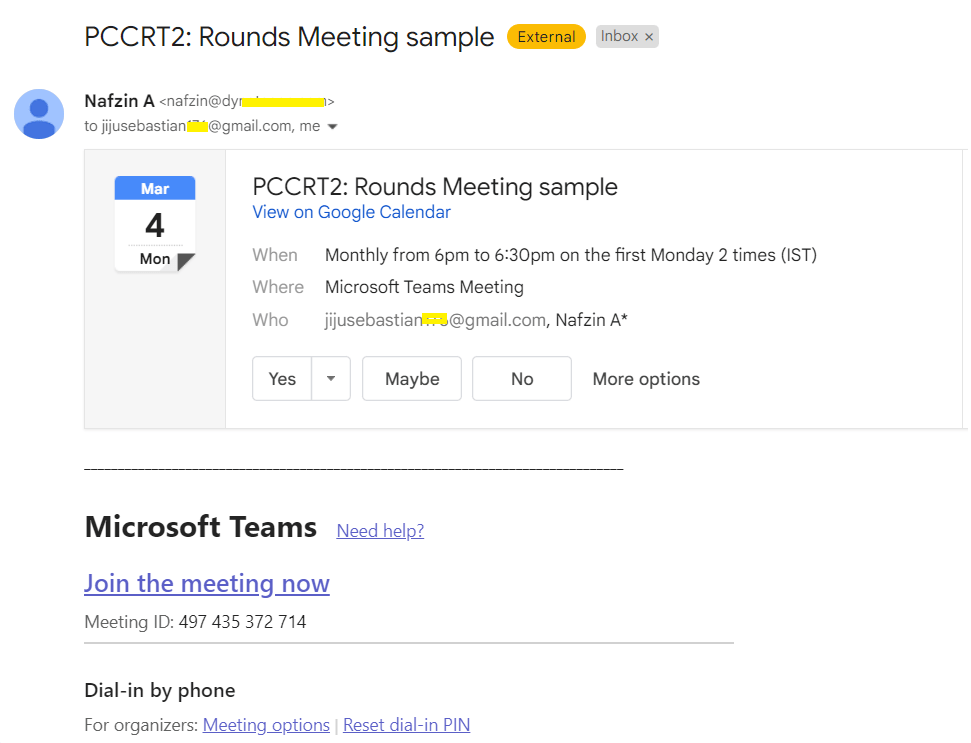
Also, you will be able to view the meeting event in both users as well as non-users calendars as shown in Fig.11 below.

Thus, with this approach, you can seamlessly set up any sort of appointment directly from power apps and be able to access the same from your event calendars if required.
Hope this blog was useful!
 Dynatecon Solutions