
 Written by
 How to create a Prospect in Dyna Projects(Project Operations app in Power Apps)
Steps:
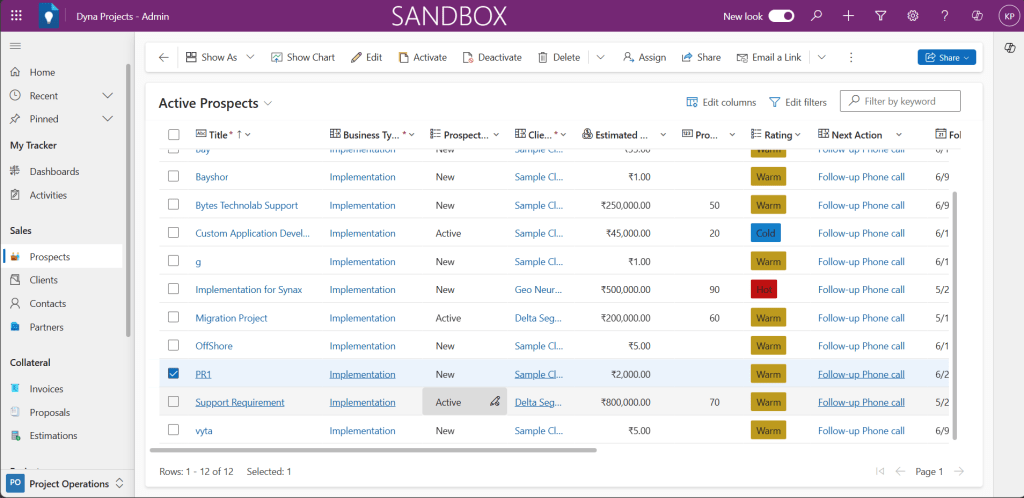
- Click on the Prospects in the left navigation bar
- Click ‘+New’ button

3. Fill in the fields
4. Click Save & Close button

5.You can view the created Prospect from the Prospects view.
How to create a Timesheet Entry in Dyna Projects(Project Operations app in Power Apps)
Steps:
- Click on Timesheet Entries in left navigation bar
- Click ‘+New’ button

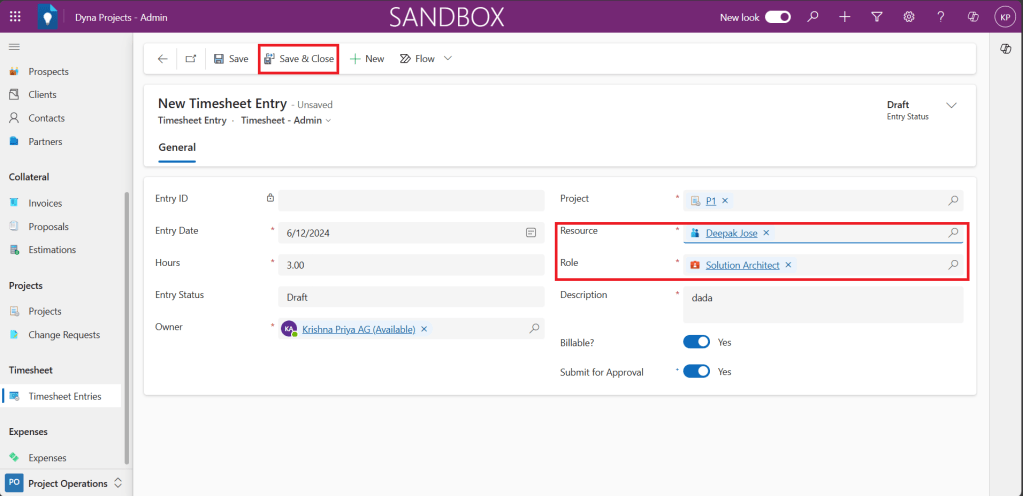
3. Fill in the fields
The Role field will get auto-populated based on the Resource selsected
4. Click on Save& Close button
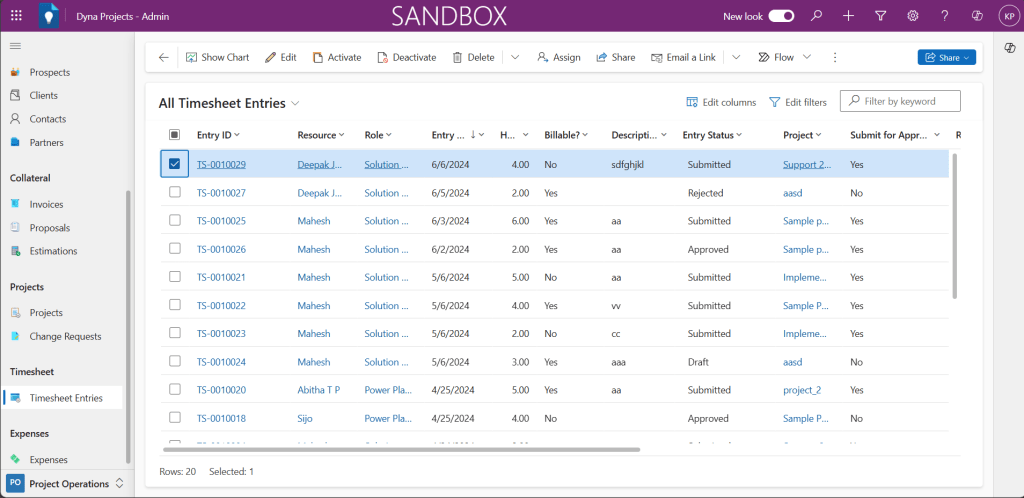
5. You can view the Timesheet Entry created from the Timesheet Entries view
How to create a Project in Dyna Projects(Project Operations app in Power Apps)
Steps:
- Click on the Projects from the left navigation pane
- Click ‘+New’ button on the top
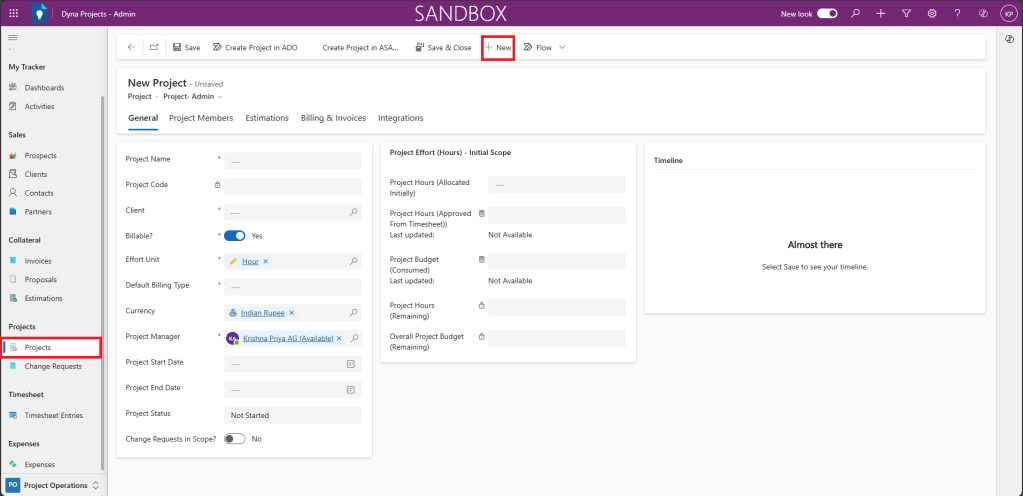
3. Fill out the fields in the form
General Tab:
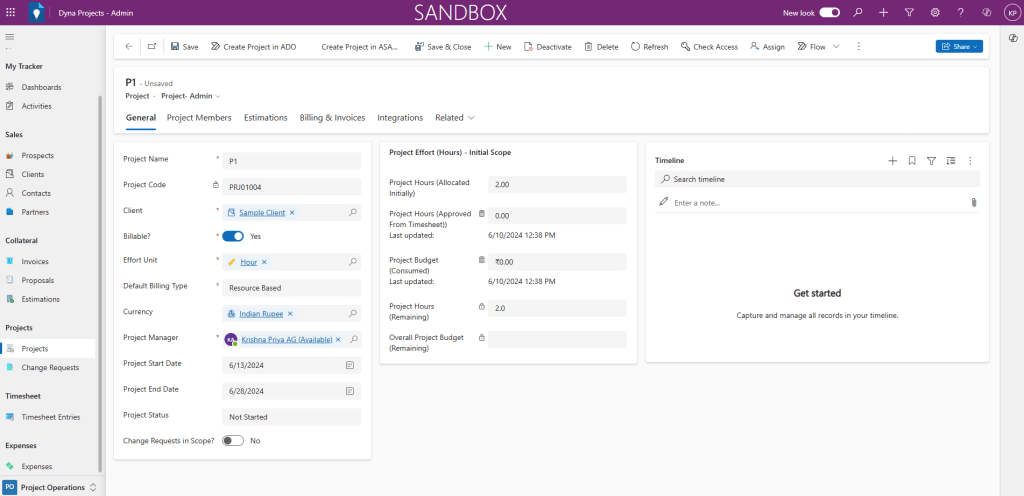
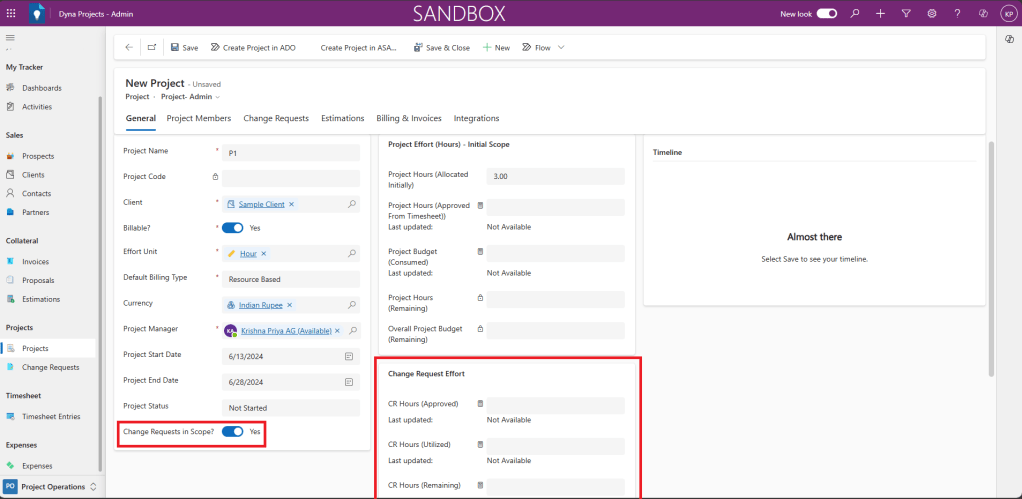
Once you select ‘Yes’ from the toggle button for ‘Change Requests in Scope?’ field, ‘Change Request Effort’ section will be shown in the form.
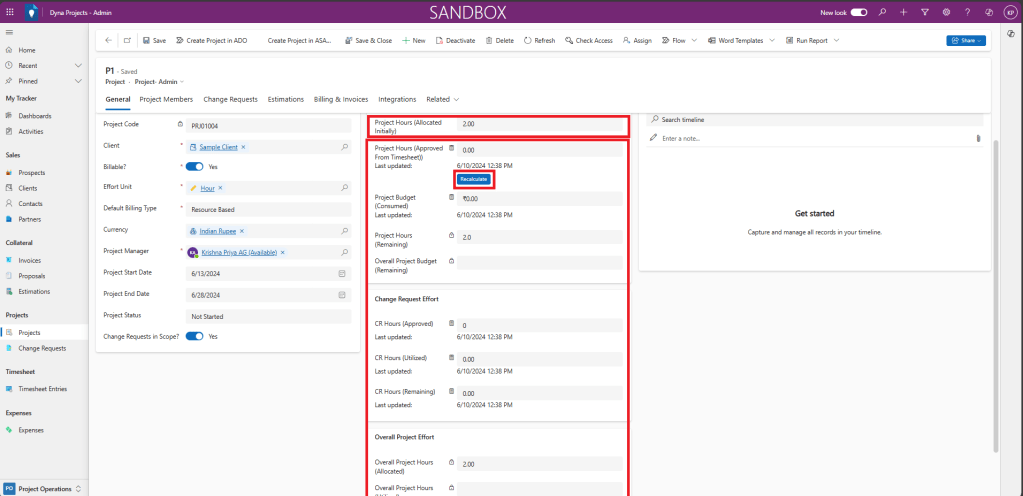
Based on the value entered in the Project Hours(Allocated Initially), all the other fields under will be auto-calculated. You also have a Recalculate button available to recalculate the values.
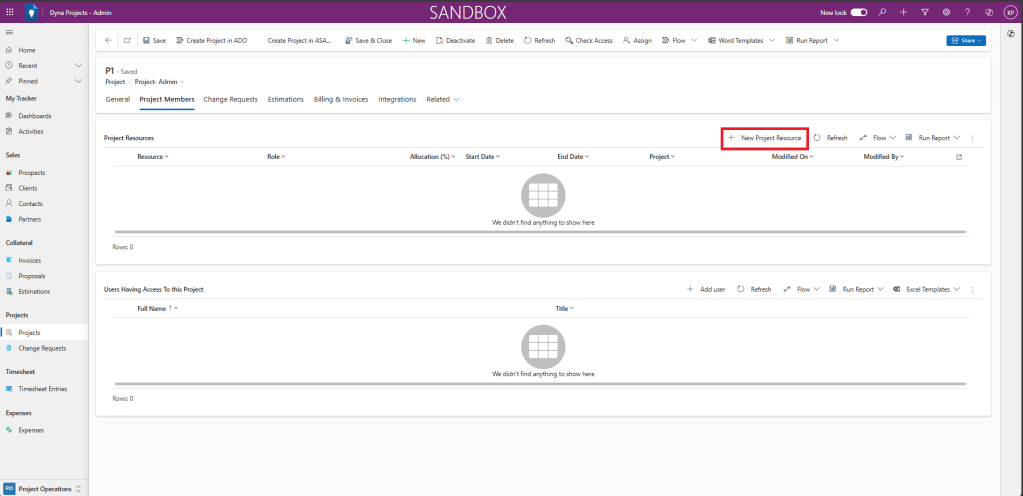
Project Members Tab:
You can add new Project Resource by clicking on the ‘+New Project’ Resource button.
Fill out the fields in the form. Based on the Resource selected Role filed will be automatically updated. Click on the Save and Close button.

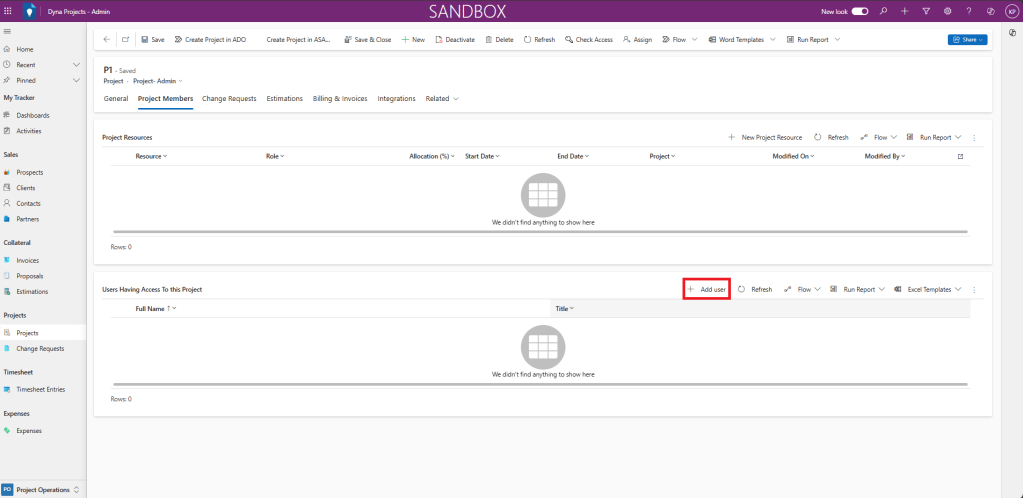
You can add new user from ‘+Add user’ button
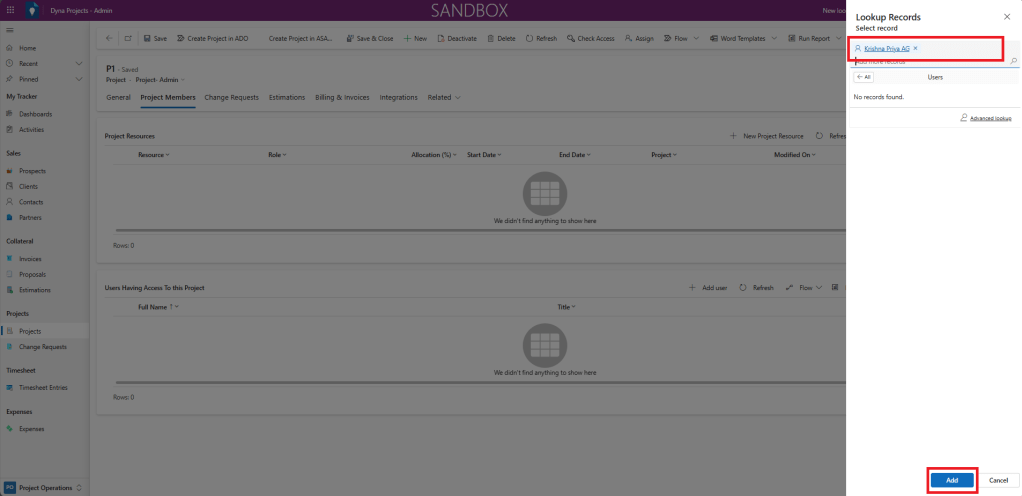
Select a user from the Lookup and click on ‘Add’ button
You can view the added members under the sections.

 Dynatecon Solutions