

 Written by
 Managing subscription renewals is critical for any business offering SaaS products or long-term service agreements. Missing renewal alerts can mean lost revenue, churned customers, or costly last-minute scrambles.
One of the biggest challenges in building reliable renewal reminder automations in Dynamics 365 (Dataverse) is date filtering.
✅ Dataverse stores all DateTime fields in UTC, while users see them in their local time zone on forms.
✅ If you want to find all renewals 30 days from today, you can’t just filter on the date alone—you must calculate and match the correct UTC window that aligns with your local date.
✅ Without this step, your queries will miss records, leading to incomplete or incorrect reminders.
It’s a classic CRM pain point: users see local dates, but the database sees UTC.
In this post, I’ll show you how to solve this the right way—with Power Automate.
We’ll build a daily scheduled flow that:
⭐ Runs automatically every day
⭐ Correctly calculates today + 30 in your local timezone
⭐ Converts that date to the matching UTC time range
⭐ Filters Dataverse records precisely in that range
⭐ Sends clear, timely renewal reminders by email
The Business Scenario
- Our company sells software subscriptions to customers.
- Each subscription has a Next Renew Date field in Dynamics 365.
- We want to proactively remind customers or internal teams about upcoming renewals 30 days in advance.
- The system must automatically run every day and send these notifications.
🧭 The Main Challenge
If you’ve used Dataverse (Dynamics 365) before, you know dates are stored in UTC. But users see local dates in forms.
Example:
- App shows: 04/08/2025 (local time, e.g. IST)
- In Dataverse API: 2025-08-03T18:30:00Z
If you filter in Power Automate for NextRenewDate = ‘2025-08-04’ directly, you’ll get no results.
You must filter for the UTC time range covering the entire local date:
yamlCopyEdit2025-08-03T18:30:00Z ➜ 2025-08-04T18:29:59Z (for IST)
This time zone conversion is the tricky bit!
The Solution
We’ll build a scheduled cloud flow in Power Automate that:
✅ Runs daily
✅ Calculates today + 30 days (in local date)
✅ Converts that local date to UTC start/end
✅ Queries Dataverse for Software Subscriptions with NextRenewDate in that UTC window
✅ Sends an email for each matching subscription
⚡ Step-by-Step Guide
Below I’ll describe each step in the Power Automate flow you can set up.
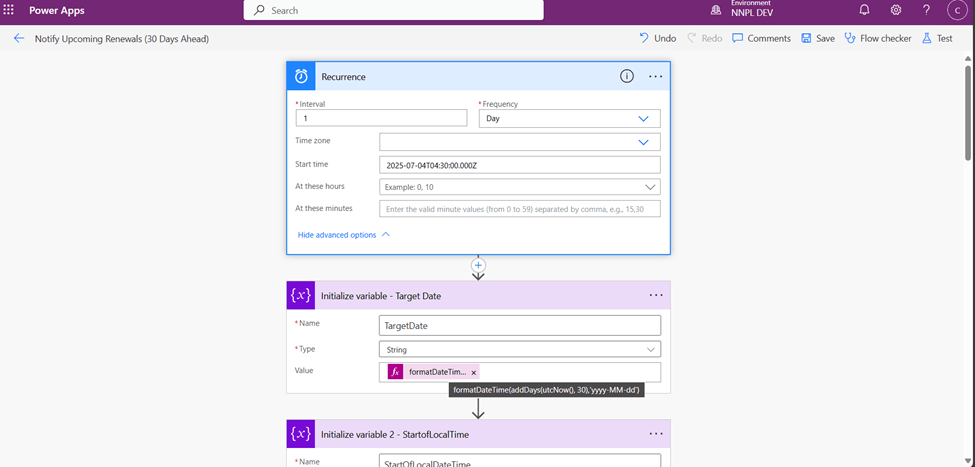
You can also see this visual flow:

1️⃣ Trigger – Recurrence
Action: Recurrence
- Frequency: 1 day
- Start time: Whenever you want
Why?
- Ensures this flow runs automatically every day.
- This is our daily reminder engine.
2️⃣ Initialize Variable – TargetDate
Purpose:
- Figure out which local date to target (today + 30 days).
Expression:
lessCopyEditformatDateTime(addDays(utcNow(),30),'yyyy-MM-dd')
Result example:
yamlCopyEdit2025-08-04
Meaning:
- This is the date the user would see in CRM forms.
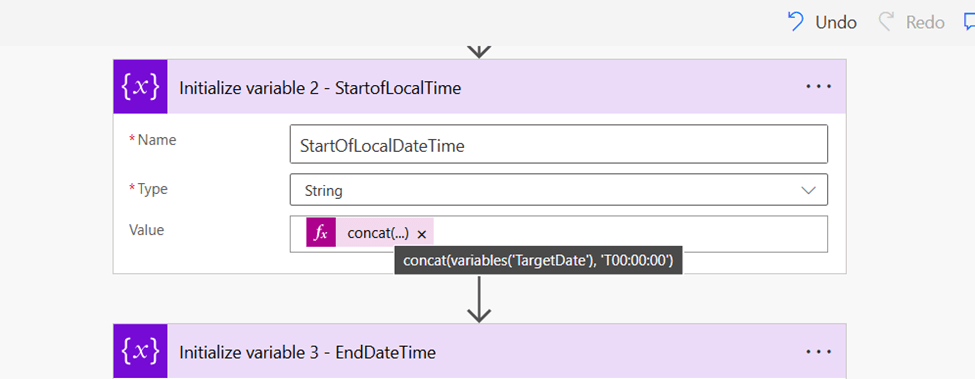
3️⃣ Initialize Variable – StartOfLocalDateTime
Purpose:
- Get the start of that local date.
Value:
lessCopyEditconcat(variables('TargetDate'),'T00:00:00')
Example result:
makefileCopyEdit2025-08-04T00:00:00
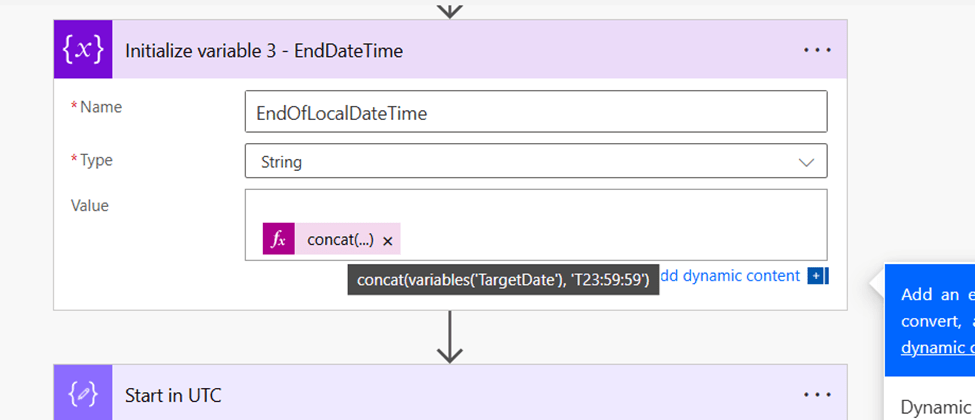
4️⃣ Initialize Variable – EndOfLocalDateTime
Purpose:
- Get the end of that local date.
Value:
lessCopyEditconcat(variables('TargetDate'),'T23:59:59')
Example result:
makefileCopyEdit2025-08-04T23:59:59
5️⃣ Compose – StartOfDayUTC
Purpose:
- Convert the local start time to UTC.
Expression:
lessCopyEditconvertTimeZone(variables('StartOfLocalDateTime'),'India Standard Time','UTC')
Example result:
makefileCopyEdit2025-08-03T18:30:00Z
✅ This is the earliest UTC time to match.
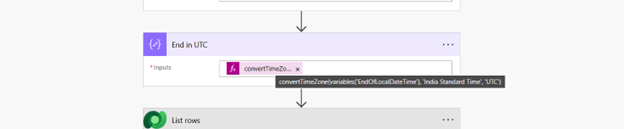
6️⃣ Compose – EndOfDayUTC
Purpose:
- Convert the local end time to UTC.
Expression:
lessCopyEditconvertTimeZone(variables('EndOfLocalDateTime'),'India Standard Time','UTC')
Example result:
makefileCopyEdit2025-08-04T18:29:59Z
✅ This is the latest UTC time to match.
Why are these conversions necessary?
Dataverse stores all date/time fields in UTC.
But CRM forms show local time.
✅ If you want to match what users see, you must use this UTC range!
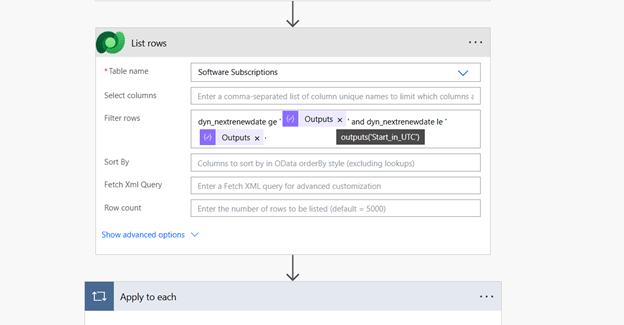
7️⃣ Dataverse – List Rows
Purpose:
- Retrieve all Software Subscription records with NextRenewDate falling in the UTC range.
Filter Rows example:
nginxCopyEditNextRenewDate ge '2025-08-03T18:30:00Z' and NextRenewDate le '2025-08-04T18:29:59Z'
✅ In Power Automate, use dynamic expressions:
nginxCopyEditNextRenewDate ge '@{outputs('StartOfDayUTC')}' and NextRenewDate le '@{outputs('EndOfDayUTC')}'
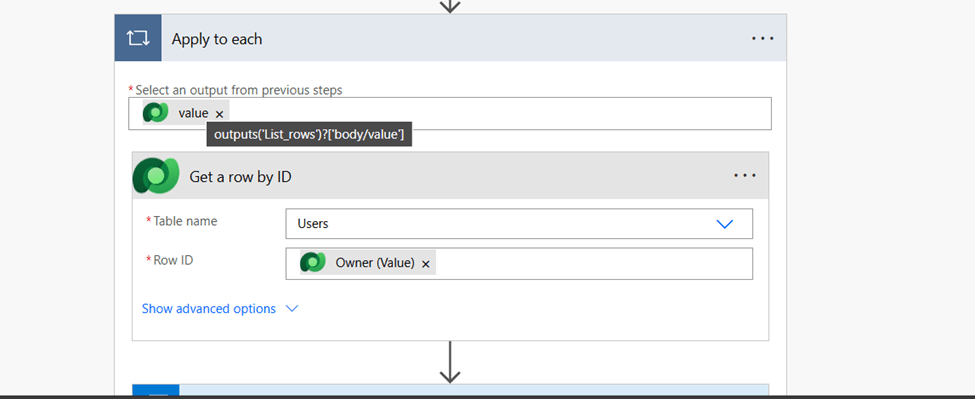
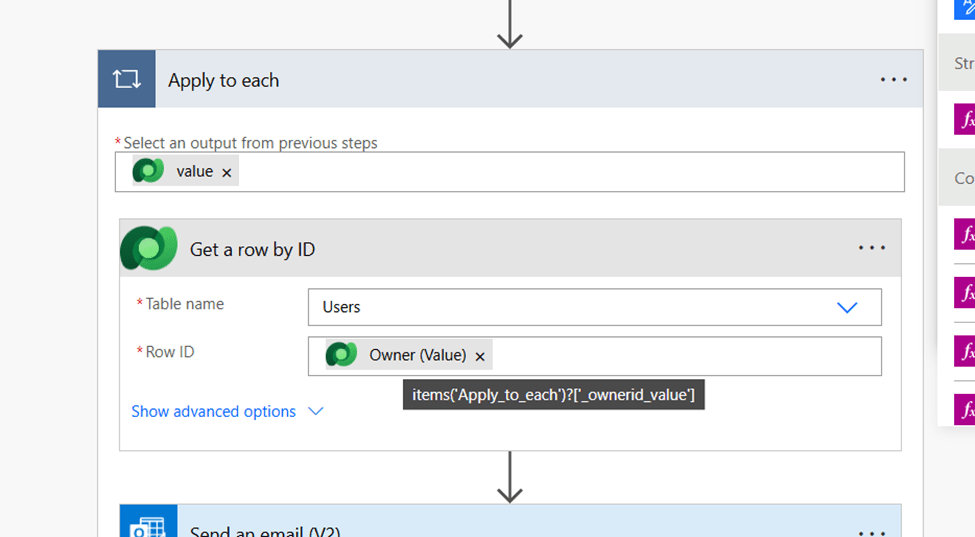
8️⃣ Apply to Each
Purpose:
- Process every subscription returned by the query.
✅ Loops through matching subscriptions.
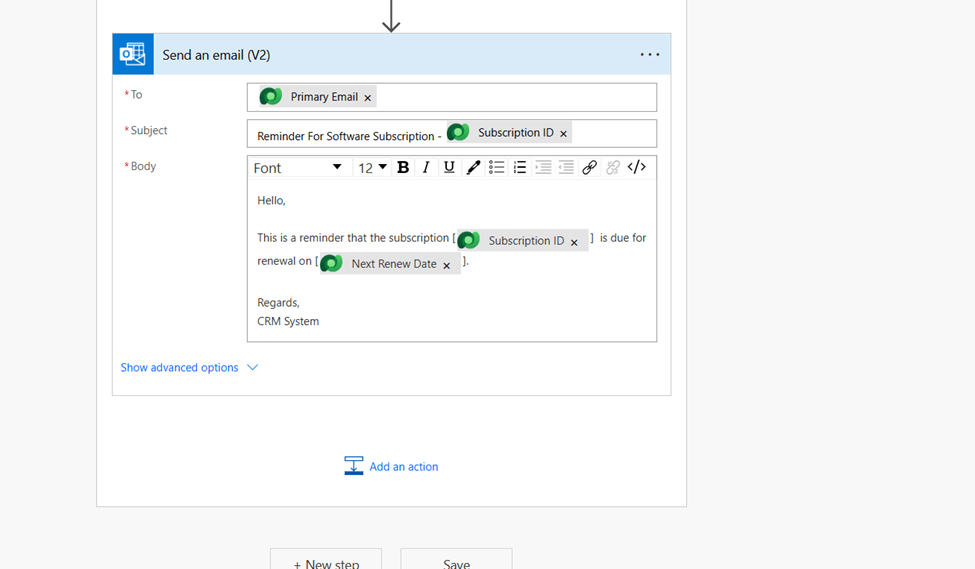
9️⃣ Send Email (V2)
Purpose:
- Send a renewal notification email.
✅ Example email content:
- Subject: “Reminder for Software Subscription Renewal”
- Body:
Hi,

This is a reminder that the Software Subscription [Subscription ID]
for [Account Name] is due for renewal on [NextRenewDate].

Regards,
Your CRM Team
✅ You can customize:
- To: Sales team, account owner, customer, etc.
- Body text and formatting.
✨ Final Result
Every day, this automation:
✅ Figures out what date is 30 days from now (local time).
✅ Converts that to the right UTC window.
✅ Queries Dataverse for matching Software Subscriptions.
✅ Sends proactive renewal reminder emails.
✅ 📌 Benefits
✔️ Fully automated
✔️ Runs daily without maintenance
✔️ Accurate date filtering even with time zone differences
✔️ Can be adapted to other use cases (renewals, alerts, reminders)
🔗 Conclusion
This flow is a fantastic example of using Power Automate + Dataverse to solve real-world CRM problems.
Handling UTC vs Local time can be confusing, but with careful conversion you can ensure perfectly accurate filters that match what users see.
 Dynatecon Solutions