
 Written by
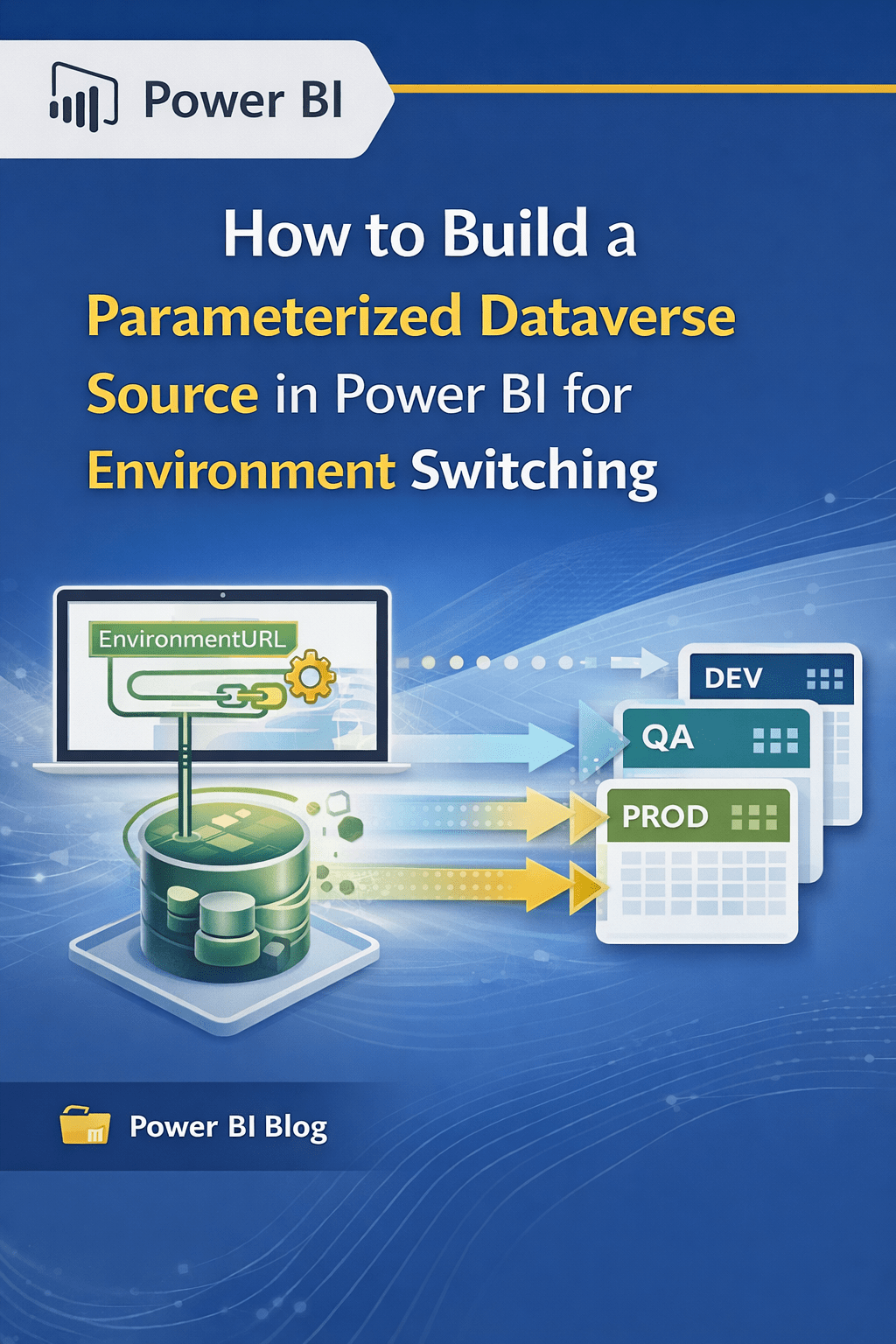
 In enterprise Power BI reporting, connecting to Dynamics 365 / Dataverse using a fixed environment URL makes deployments fragile. Every time you move from Dev → QA → Production, you must manually update data sources — a process that’s error-prone and not suitable for production.
When working with multiple environments (Dev, QA, Production):
Challenges with Hard-Coded Dataverse URLs
- Hard-coded URLs per table lead to manual updates and higher maintenance effort
- Multiple data sources can cause inconsistent refresh behavior
- Deployment across environments becomes difficult to manage
Benefits of a Parameterized Dataverse Source
- Consistent behavior across all Dataverse tables
- Single centralized control for environment configuration
- Seamless environment switching by updating one parameter
A parameter-driven connection is similar in spirit to building reusable and flexible solutions in Power.
Step-by-Step: Create a Parameterized Dataverse Data Source
1. Create a Parameter
- Open Power BI Desktop
- Go to Home → Transform Data → Power Query Editor
- On the ribbon → Manage Parameters → New Parameter
- Define parameter:
Name : EnvironmentURL
Type :Text
Current Value : https://your-org-dev.api.crm.dynamics.com
2. Locate the Root Dataverse Source Query
In the Power Query Queries pane, identify the query that holds the Dataverse connection (not just a specific table):
Often named something like:
- Dataverse
- CommonDataService
- or it might show as a blank “Source” step for any table
Example:
Source = CommonDataService.Database(“https://org-dev.crm.dynamics.com”)
This line must be updated.
3. Replace Hard-Coded URL with the Parameter
In the query’s Advanced Editor, replace:

With:

4. Apply the Change Across All Tables
If properly implemented, all tables that depend on this root source will pick up the parameter.
You do not need to edit each table’s URL individually — as long as they all reference the same root source query, they inherit the parameter automatically.
5. Validate & Refresh
- Change the parameter value (e.g., to QA or Prod URL)
- Click Refresh Preview
- Verify that all tables load successfully without errors
If everything refreshes without manual source edits, your model is production-ready.
Why This Matters for Production
This approach brings enterprise-grade reliability:
* One source of truth for environment URL
* Easy environment switching during deployment
* Encourages consistency across Dev → QA → Prod
* Reduces errors and manual effort
As organizations build more sophisticated solutions (e.g., AI-powered assistant systems using Power Platform and Dataverse that automate HR tasks), a consistent and parameterized data strategy becomes critical. (Dynatecon Solutions)
Conclusion
Parameterizing the Dataverse data source in Power BI is a production-ready and scalable approach for managing multiple environments such as Development, QA, and Production. Instead of manually updating environment URLs for each table, using a single environment parameter at the root Dataverse source ensures consistency across all entities.
This approach significantly reduces deployment effort, minimizes errors, and aligns with modern ALM best practices in the Microsoft Power Platform ecosystem. By adopting parameterized data sources, teams can seamlessly promote Power BI reports across environments while maintaining reliability and maintainability—making it an essential technique for enterprise Power BI implementations.
Tags
#Power BI#Dataverse#Dynamics 365#Power Query#Power BI Parameters#Environment Switching#ALM (Application Lifecycle Management)#Microsoft Power Platform#Power BI Best Practices#Enterprise BI
References
- Microsoft Learn – Use Parameters in Power Query
https://learn.microsoft.com/power-query/power-query-parameters - Microsoft Learn – Connect to Dataverse from Power BI
https://learn.microsoft.com/power-bi/connect-data/desktop-connect-dataverse
 Dynatecon Solutions