

 Written by
 To ensure consistency in your business process or to know what steps to follow in certain scenarios or events, rely on the playbooks prepared by your managers that guide you with the actions you can take. Playbooks can also contain best practices based on practices that have worked in similar situations before.
Playbook template allows managers to define set of activities [ limited to Tasks, Phone Calls and Appointment currently] which should be initiated on a specific event [manually as well as automatically].
This feature can be used to ensure that sales team follows specific actions in specific order.

How to enable Playbook in Dynamics 365 CE?
Steps involved are:
- Enable Playbook feature in the instance
- Create Playbook Category
- Create Playbook Template(s)
- Users with Playbook User role would now be able to launch manually / access Playbooks
- Optionally, workflow / Flow can be created for auto launch of Playbooks
Note: Playbook feature can be enabled only in Sales Hub currently.
Steps in Detail
1. Access Sales Hub>App Settings>Playbook Settings and then Enable Playbook

2. Once Playbook is enabled, next step is to create Playbook Category
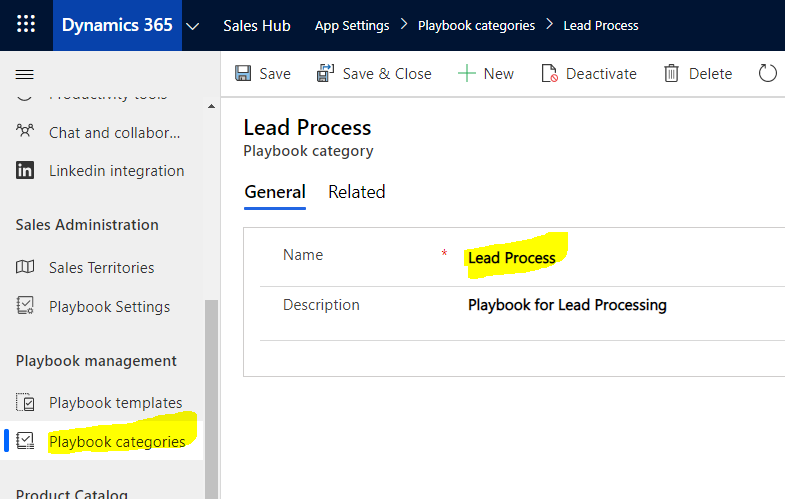
3. Once Playbook Category is created, next step is to create Playbook Template

4. Playbook activities can be added to the Playbook Template
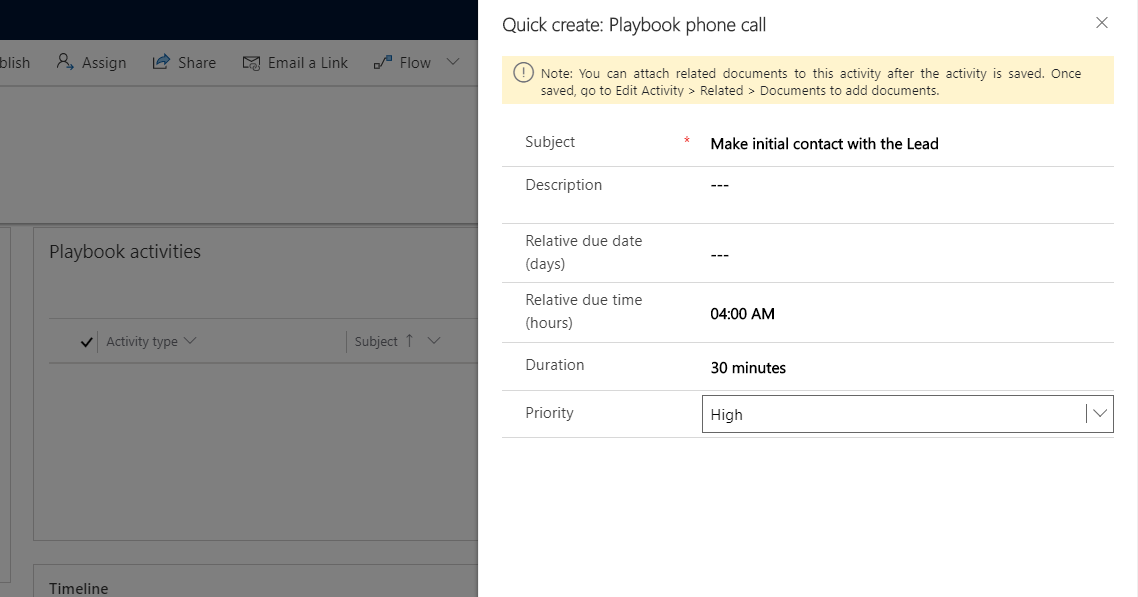
5. Once the activities are added, Template can be published for usage. That’s it.
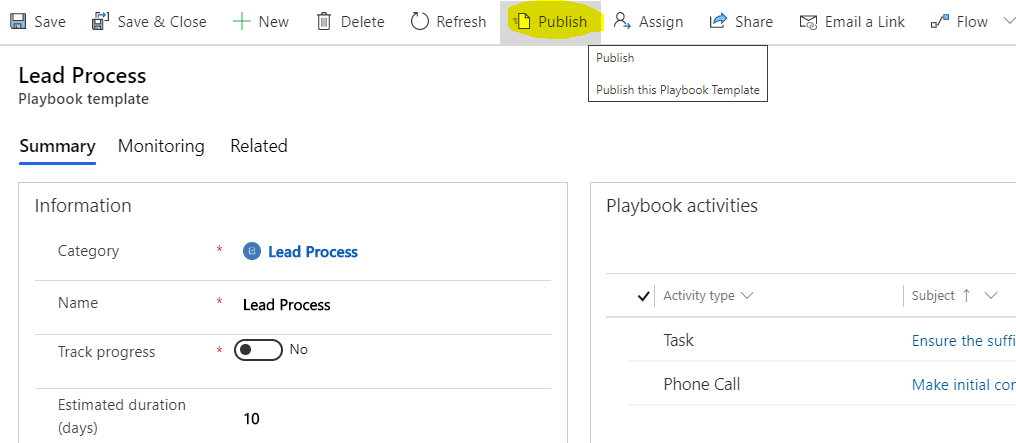
6. Users with Playbook user role would now be able to launch the playbook from the respective entity record [ in our case lead record]
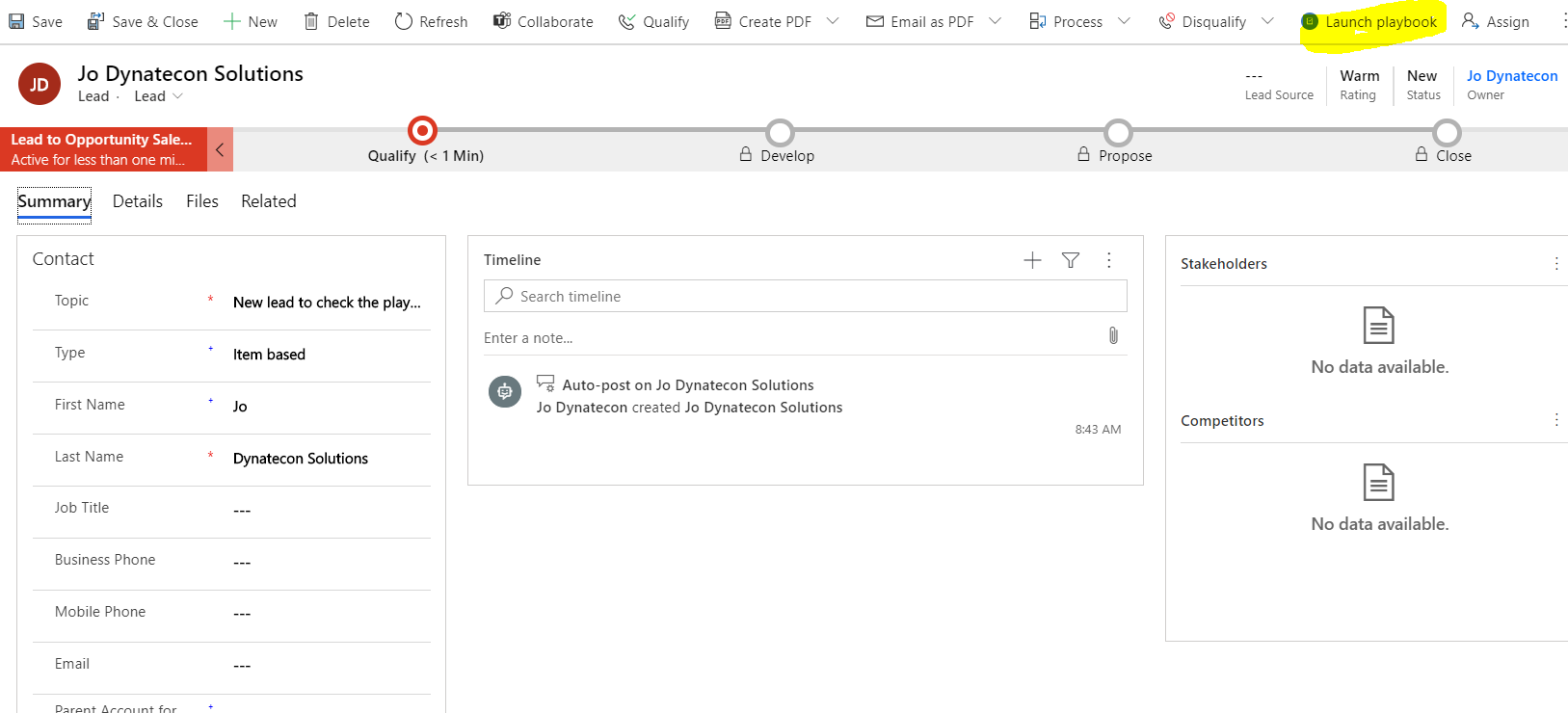

7. To view the Playbooks created in the Lead, access Related>Playbooks


And, playbook activities can now be tracked within the Playbook

Hope you would make the best use of this feature in your organization as well!
 Dynatecon Solutions