
 Written by
 E-sign is the electronic equivalent of a handwritten signature. It’s a digital way of signing documents electronically rather than using pen and paper. This process involves applying an electronic signature to a document. Documents can be signed and processed much faster compared to traditional ways. They can also be signed from anywhere with an internet connection. Advanced e-sign solutions offer robust security features to protect document integrity.
OBJECTIVE:
We have multiple levels of approval. These include BU and Legal. We want to use Adobe Acrobat Sign to collect signatures from all approvers in a specific order. The final signed document should contain all signatures.
Steps to Implement:
Step 1: When a file is created (properties only) (SharePoint)
Step 2: Get file content (SharePoint)
Step 3: Upload a document and get a document ID (Adobe Acrobat Sign)
To use the Adobe Sign Acrobat connection, you must have an Adobe Acrobat account and be signed in for the process to work correctly.
- File Name: Dynamic content value (File name with extension)
- File Content: Dynamic content value
Step 4: Create an agreement from an uploaded document and send for signature | BU and Legal (Adobe Acrobat Sign)
- Agreement Name: Dynamic content value (selected File name with extension)
- Document ID: Dynamic content value (selected Document ID)
- Recipients:
[
  {
    "email": "Your Email ID",
    "securityOption/authenticationMethod": "NONE",
    "order": 1,
    "role": "SIGNER"
  },
  {
    "email": "Your Email ID",
    "securityOption/authenticationMethod": "NONE",
    "order": 2,
    "role": "SIGNER"
  }
]
We can edit the signing process in several ways. We can specify the order of signers. We can apply security measures for confidential documents. We can assign roles to signers. We can control email notifications through CC and BCC options.
Step 5: Delay (as per need, here I have used 30 second)
Step 6: Get the status of an agreement (Adobe Acrobat Sign)
- Agreement ID: Dynamic content value (selected Agreement ID from step 4)
Step 7: Initialize variable | Status
- Name: Status
- Type: String
- Value: Dynamic content value (selected status from step 6)
Step 8: Initialize variable | BU
- Name: Approval Status BU
- Type: String
- Value: Empty
Step 9: Initialize variable | Legal
- Name: Approval Status | Legal
- Type: String
- Value: Empty
Step 10: Do until
Condition: Dynamic content value (variables(‘Approval Status | Legal’) is equal to ‘SIGNED’
Inside the Do until:
10.a Get the status of an agreement (Adobe Acrobat Sign)
- Agreement ID: Dynamic content value (selected Agreement ID from step 4)
10.b Check Condition
- Condition: Dynamic content value (selected Status from step 10a) is equal to ‘SIGNED
If Yes:
10.c Set variable
- Name: Approval Status | Legal
- Value: Legal Approved
10.d Delay (as per need, here I have used 10 second)
If No: No action
Step 11: Get a PDF of a signed agreement (Adobe Acrobat Sign)
- Agreement ID: Dynamic content (selected value Agreement ID from step 4)
Flow Details:
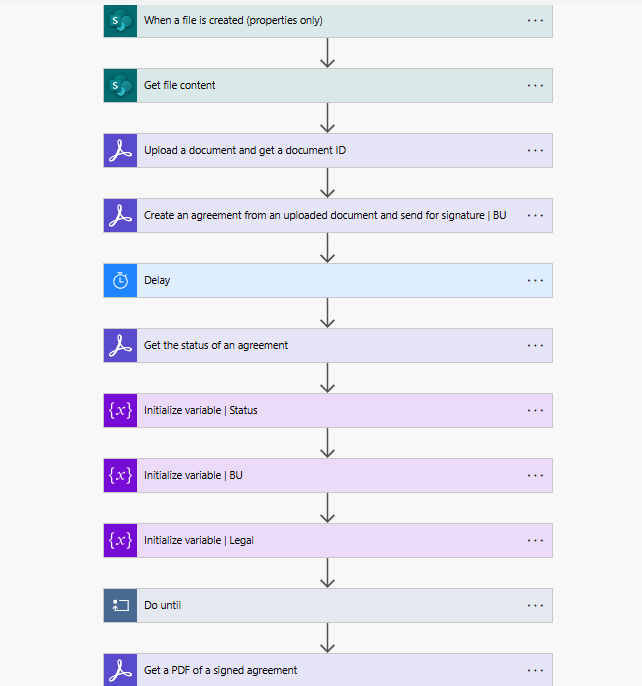
fig .1
OUTPUT:
Upon completion of the signing process by all approvers, a final PDF containing all signatures will be generated.
Hope it helps!
 Dynatecon Solutions