
 Written by
 Power Pages allows you to integrate Power BI Reports & Dashboards directly into your web portals. Embedding Power BI reports in Power Pages can provide your users with rich, interactive visualizations and insights without leaving the portal. In this blog, we’ll walk you through the steps to embed a Power BI report into your Power Pages site.
Prerequisites
Before you begin, ensure you have the following settings enabled:
- Go to Admin Centre and select your environment settings ,In settings select features and enable power BI related settings.
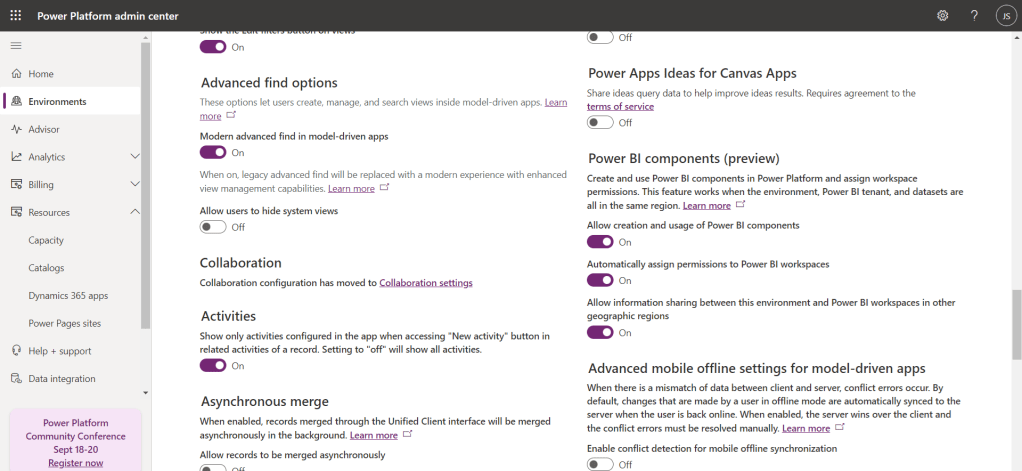
Fig.1
2.In Admin Centre, Go to resources and select Power pages sites and select your site and manage settings and enable Power BI related settings.
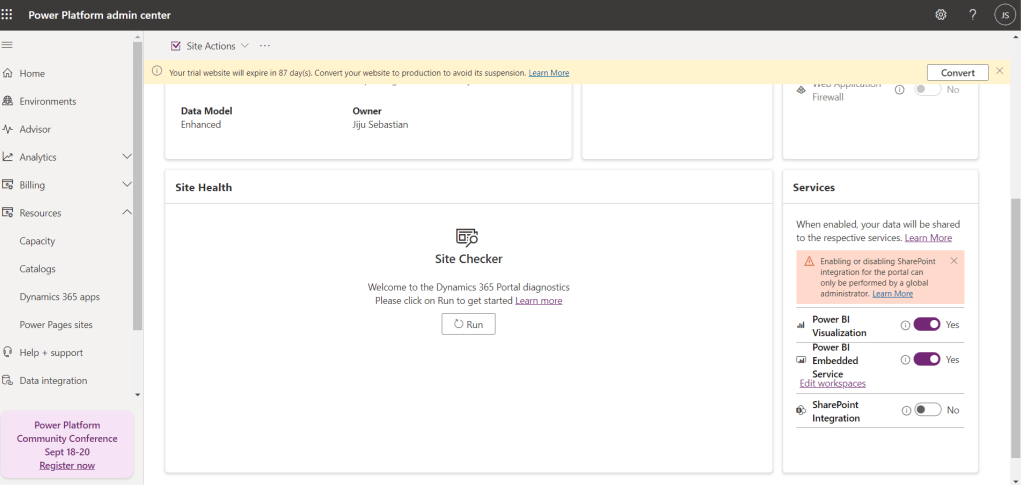
Fig.2
3. Go to Microsoft azure and select Microsoft Entra Id and create a new group and add a new member, When adding the member search for portal we can see a record with your portal name which is a “service principle” type and add it to members.

Fig.3

Fig.4
Step 1: Generate the Embed Code from Power BI
- Sign in to Power BI: Open Power BI and sign in with your credentials.
- Navigate to Your Report: Go to the workspace where your report is located.
- Copy the Report URL you want to Embed to the power page website.
Step 2: Add the Power BI Report to Power Pages
- Open power pages design studio and create a new page for your report and edit in visual studio code, add the liquid code inside a div tag required for Embedding the report.
Liquid Code:
{% powerbi authentication_type:”powerbiembedded” path:”Path of your Power BI Report” %}
Step 3: Configure Access Permissions
For secure embedding:
- Set Up Permissions in PowerApps Portals:
- Go to the Portals app in PowerApps.
- Navigate to Web Roles and set up roles that match the permissions required to access the Power BI report.
- Assign these roles to the users or contacts who need access.
Step 4: Test the Embedded Report
- Preview the Portal: Open the Power Pages site in preview mode or publish it.
- Verify the Report: Ensure the Power BI report loads correctly and the data is displayed as expected. Check the access controls to ensure that only authorized users can view the report if it’s securely embedded.

