
 Written by
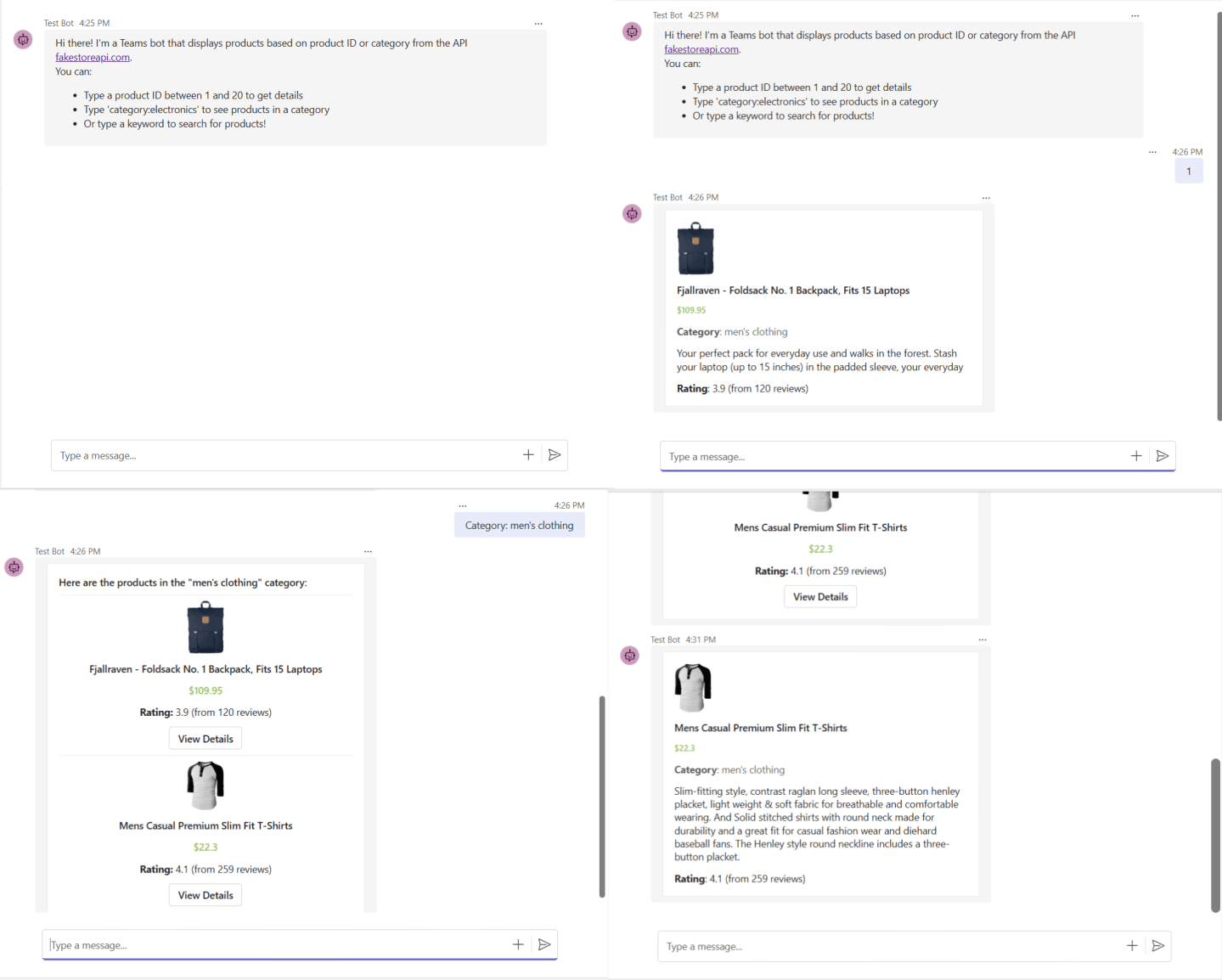
 In this blog, we’ll walk you through the steps to create a Microsoft Teams bot that allows users to display product details by product ID, category, or search query using an external API. The bot is built using the Bot Framework SDK and interacts with Fake Store API, which provides sample product data perfect for testing.
We’ll show you how to set up the bot, build features for product lookup, and handle various search types. While the article guides you through the main parts of the code, you can download the project to see the full source code and try it out yourself.
Key Features of the Bot:
- Product Lookup by ID: Users can enter a product ID to get detailed information about a specific product.
- Category Search: Users can search for products by category (e.g., “electronics”).
- Keyword Search: Users can type a keyword, and the bot will return products that match.
Setting Up the Bot
Let’s start by setting up a basic Teams bot using Node.js and the Bot Framework SDK in Visual Studio Code. You’ll need to install the Teams Toolkit extension, which enables login to your Azure account, where you can then provision, deploy, and publish your bot.
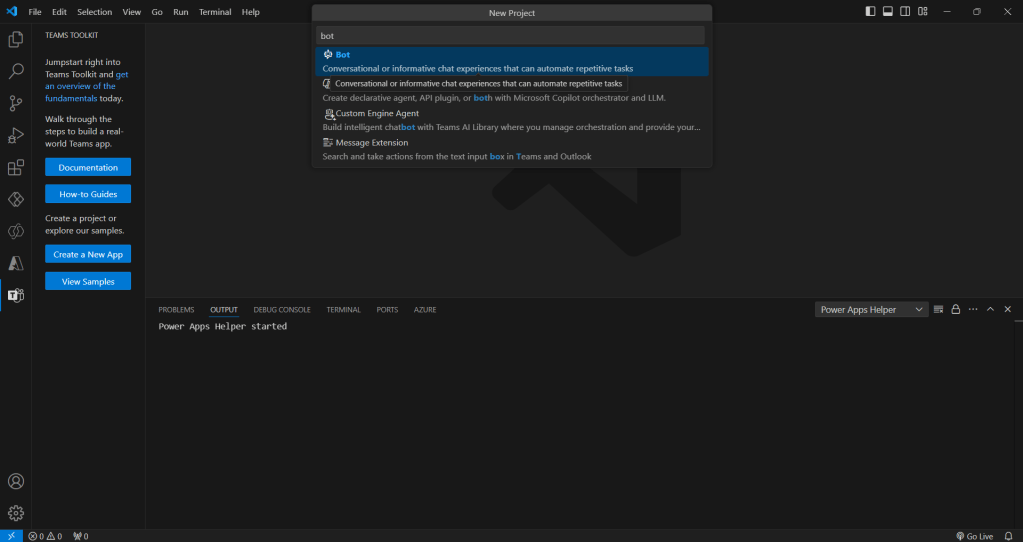
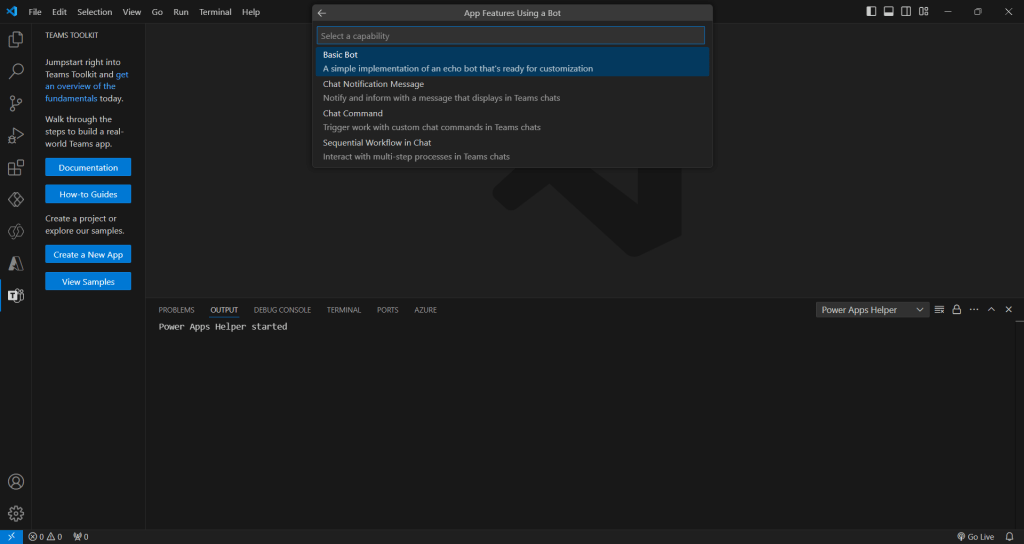
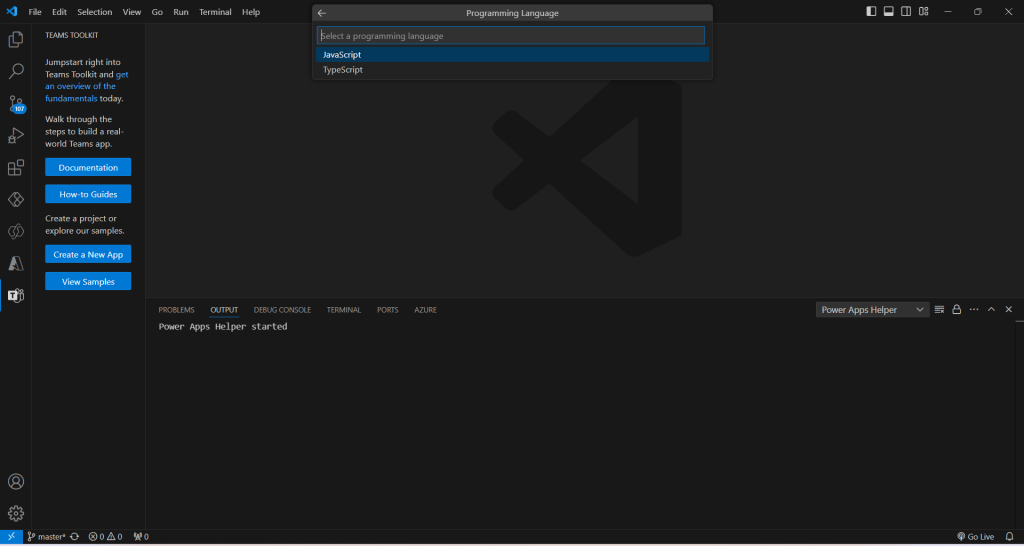
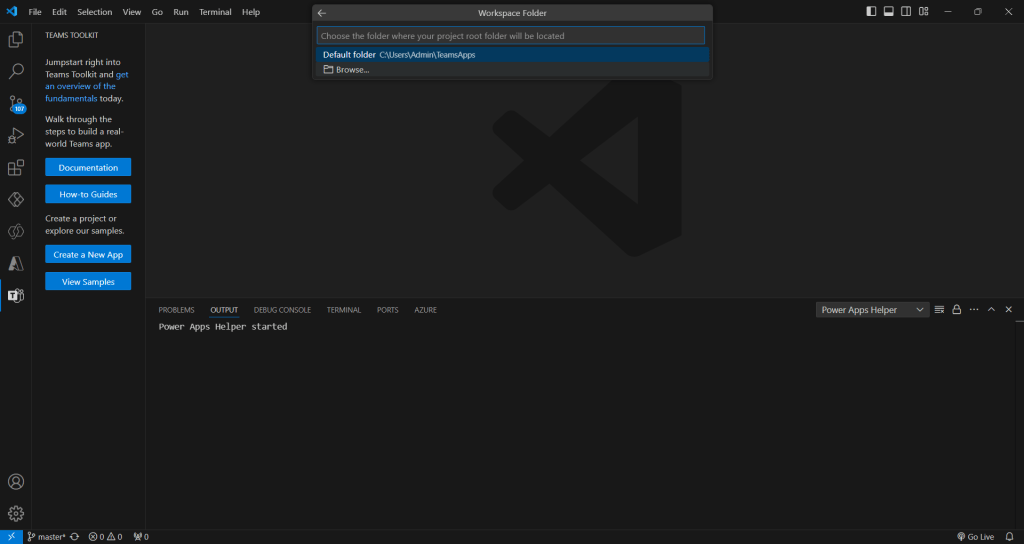
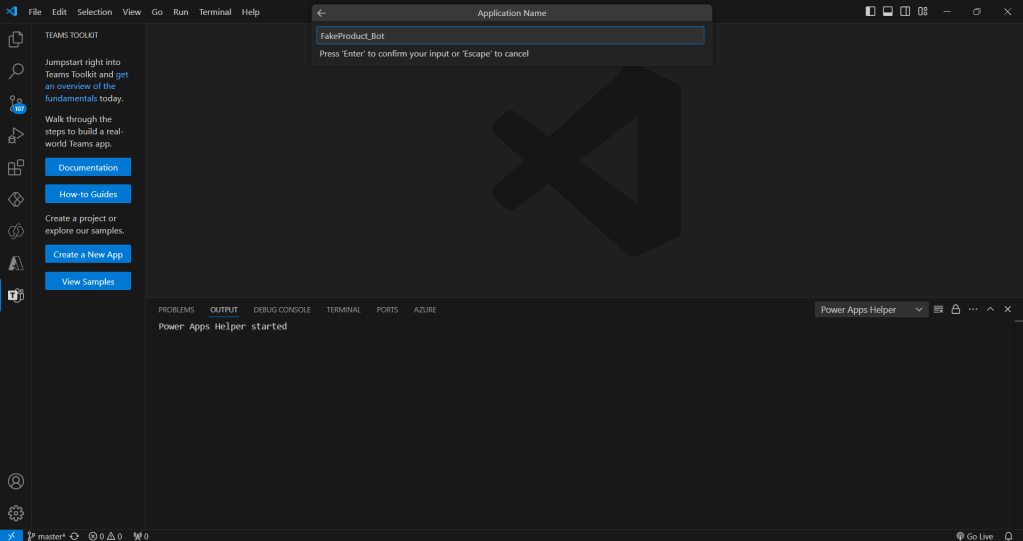
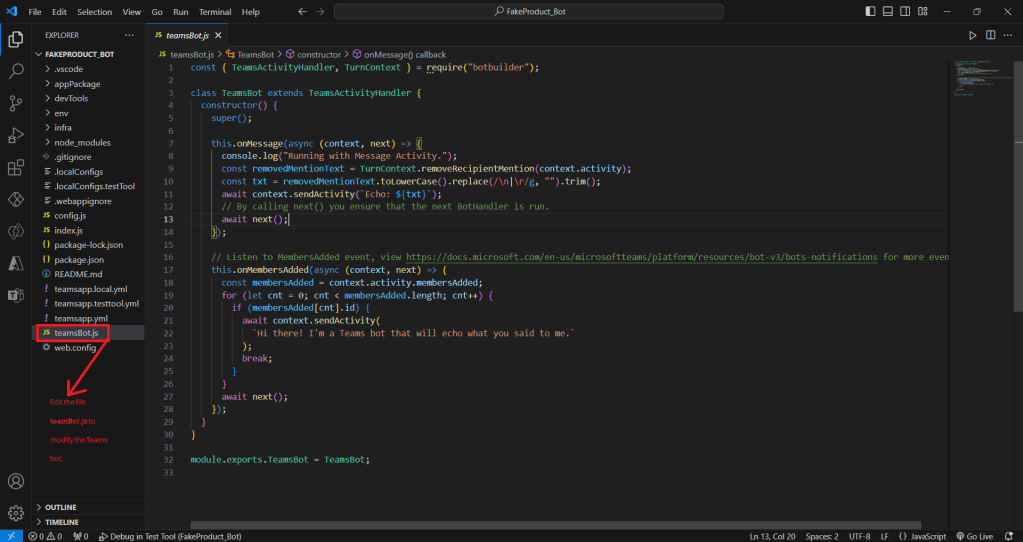
teamBot.js for Customization.Handling User Input
Now, let’s add logic to handle different types of user input. The bot can process:
- Product ID: If the user enters a number, the bot treats it as a product ID.
- Category: If the input starts with
category:, the bot fetches products from the specified category. - Keyword Search: Any other input is treated as a search query.
Here’s the code that handles these scenarios:
class TeamsBot extends TeamsActivityHandler { constructor() { super(); this.onMessage(async (context, next) => { console.log("Running with Message Activity."); // Check if the message contains a submitted action (product selection) if (context.activity.value && context.activity.value.productId) { const productId = context.activity.value.productId; await this.getProductById(context, productId); } else { const removedMentionText = TurnContext.removeRecipientMention(context.activity); const userInput = removedMentionText.toLowerCase().replace(/\n|\r/g, "").trim(); if (!isNaN(userInput) && Number(userInput) > 0) { // If input is a number, treat it as product ID await this.getProductById(context, userInput); } else if (userInput.startsWith("category:")) { // If input starts with 'category:', treat it as category search const category = userInput.split("category:")[1].trim(); await this.getProductsByCategory(context, category); } else { // Otherwise, treat input as a search query await this.searchProducts(context, userInput); } } await next(); });}}module.exports.TeamsBot = TeamsBot;
1.Fetching Products by ID
When the user enters a product ID, this function fetches the product details and sends an Adaptive Card with the product information:
async getProductById(context, productId) { try { const response = await fetch(`https://fakestoreapi.com/products/${productId}`); if (response.ok) { const productData = await response.json(); // Create an Adaptive Card with product details const card = { type: "AdaptiveCard", body: [ { type: "Image", url: productData.image, altText: "Product Image", size: "Medium" }, { type: "TextBlock", text: productData.title, weight: "Bolder", size: "Medium" }, { type: "TextBlock", text: `$${productData.price}`, weight: "Bolder", size: "Small", color: "Good" }, { type: "TextBlock", text: `**Category**: ${productData.category}`, isSubtle: true, wrap: true }, { type: "TextBlock", text: productData.description, wrap: true }, { type: "TextBlock", text: `**Rating**: ${productData.rating.rate} (from ${productData.rating.count} reviews)`, wrap: true } ], actions: [], $schema: "http://adaptivecards.io/schemas/adaptive-card.json", version: "1.3" }; await context.sendActivity({ attachments: [CardFactory.adaptiveCard(card)] }); } else { await context.sendActivity("Invalid product ID. Please try again."); } } catch (error) { console.error(error); await context.sendActivity("There was an issue fetching the product. Please try again later."); }}
2. Fetching Products by Category
This function fetches products based on the user’s selected category and returns up to two products:
async getProductsByCategory(context, category) { try { const response = await fetch(`https://fakestoreapi.com/products/category/${category}`); if (response.ok) { const products = await response.json(); if (products.length > 0) { const headerMessage = { type: "TextBlock", text: `Here are the products in the "${category}" category:`, weight: "Bolder", size: "Medium", wrap: true }; // Limit to 2 products for demonstration purposes const limitedProducts = products.slice(0, 2); const productContainers = limitedProducts.map((product) => ({ type: "Container", style: "default", // Simulate border-like effect spacing: "medium", separator: true, // Add a separator to mimic a border items: [ { type: "Image", url: product.image, altText: product.title, size: "Medium", horizontalAlignment: "Center" }, { type: "TextBlock", text: product.title, weight: "Bolder", wrap: true, horizontalAlignment: "Center" }, { type: "TextBlock", text: `$${product.price}`, weight: "Bolder", color: "Good", horizontalAlignment: "Center" }, { type: "TextBlock", text: `**Rating:** ${product.rating.rate} (from ${product.rating.count} reviews)`, wrap: true, horizontalAlignment: "Center" }, // Add an Action.Submit button to select the product { type: "ActionSet", horizontalAlignment: "Center", actions: [ { type: "Action.Submit", title: "View Details", data: { productId: product.id } // Send product ID when clicked } ] } ] })); const card = { $schema: "http://adaptivecards.io/schemas/adaptive-card.json", type: "AdaptiveCard", version: "1.0", body: [headerMessage, ...productContainers] }; await context.sendActivity({ attachments: [CardFactory.adaptiveCard(card)] }); } else { await context.sendActivity(`No products found in the "${category}" category.`); } } else { await context.sendActivity("Invalid category. Please try again."); } } catch (error) { console.error(error); await context.sendActivity("There was an issue fetching products by category. Please try again later."); }}
3. Searching Products by Keyword
This function handles keyword searches, finding products whose title matches the user’s search term:
async searchProducts(context, searchTerm) { try { const response = await fetch(`https://fakestoreapi.com/products`); if (response.ok) { const products = await response.json(); const filteredProducts = products.filter((product) => product.title.toLowerCase().includes(searchTerm.toLowerCase()) ); if (filteredProducts.length > 0) { const headerMessage = { type: "TextBlock", text: `Here are the products that match "${searchTerm}":`, weight: "Bolder", size: "Medium", wrap: true }; const productContainers = filteredProducts.map((product) => ({ type: "Container", style: "default", // Simulate border-like effect spacing: "medium", separator: true, // Add a separator to mimic a border items: [ { type: "Image", url: product.image, altText: product.title, size: "Medium", horizontalAlignment: "Center" }, { type: "TextBlock", text: product.title, weight: "Bolder", wrap: true, horizontalAlignment: "Center" }, { type: "TextBlock", text: `$${product.price}`, weight: "Bolder", color: "Good", horizontalAlignment: "Center" }, { type: "TextBlock", text: `**Rating:** ${product.rating.rate} (from ${product.rating.count} reviews)`, wrap: true, horizontalAlignment: "Center" }, // Add an Action.Submit button to select the product { type: "ActionSet", horizontalAlignment: "Center", actions: [ { type: "Action.Submit", title: "View Details", data: { productId: product.id } // Send product ID when clicked } ] } ] })); const card = { $schema: "http://adaptivecards.io/schemas/adaptive-card.json", type: "AdaptiveCard", version: "1.0", body: [headerMessage, ...productContainers] }; await context.sendActivity({ attachments: [CardFactory.adaptiveCard(card)] }); } else { await context.sendActivity(`No products found for "${searchTerm}".`); } } else { await context.sendActivity("There was an issue searching for products. Please try again."); } } catch (error) { console.error(error); await context.sendActivity("There was an issue searching for products. Please try again later."); }}
Testing the Bot
After implementing the bot logic, you can test it locally in your browser. Here’s how:
- Run the Bot: In VS Code, select Run and then Start Debugging.
- Test Product Queries: Try typing in product IDs, categories, or keywords to see how the bot responds.
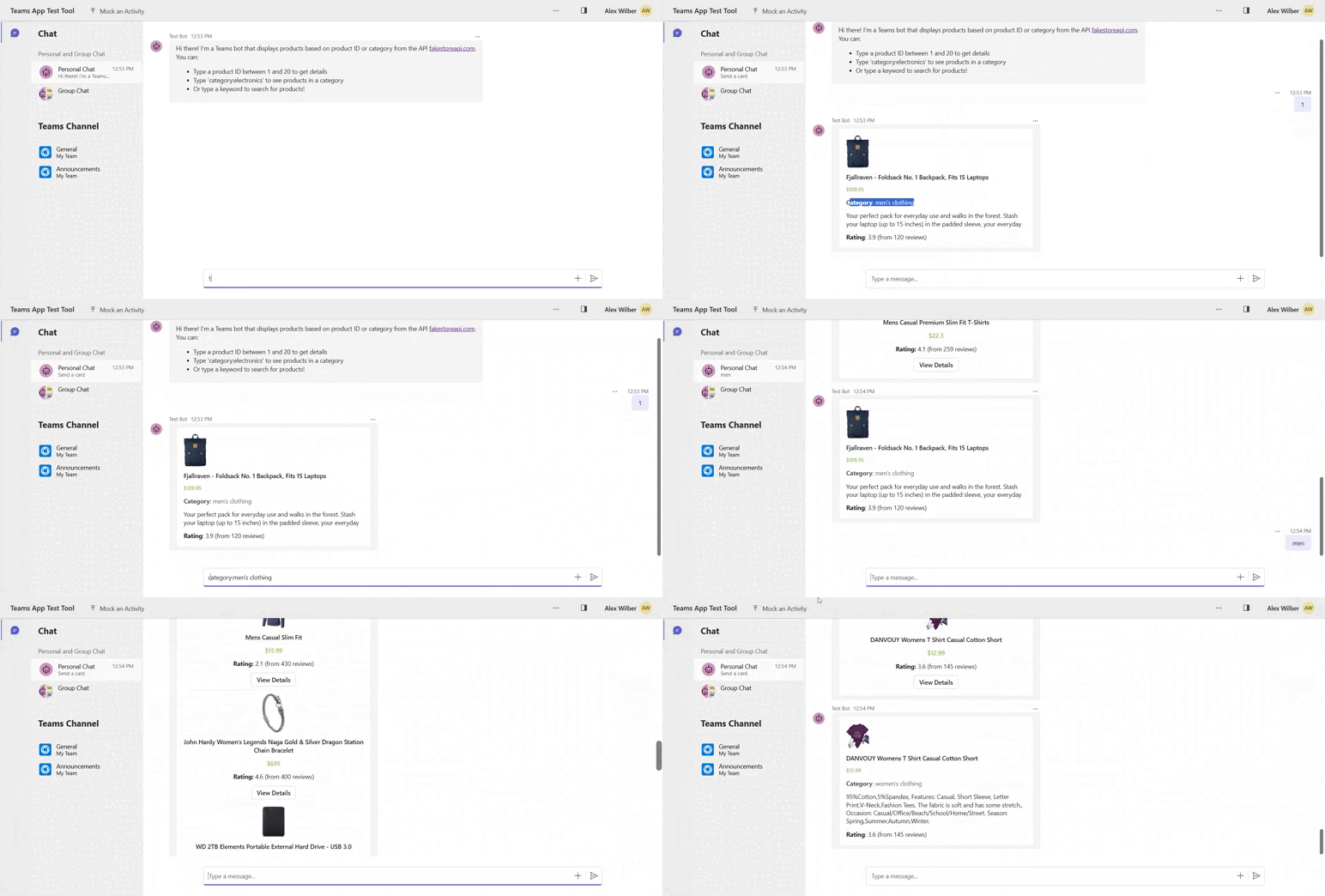
Conclusion
In this blog post, we showed you how to create a Microsoft Teams bot that connects to an API to fetch and display product information. By using APIs and Adaptive Cards, you can create a flexible, interactive bot that enhances user experience within Teams.
This bot is an excellent starting point for building richer, custom experiences on Microsoft Teams. Give it a try, explore new APIs, and customize as needed to make it even more powerful for your specific needs!
 Dynatecon Solutions