

 Written by
 Dynamics 365 Field Service allows organizations to sync work order bookings with Outlook calendars. This helps technicians and dispatchers see bookings in a familiar calendar view and makes scheduling easier to manage.
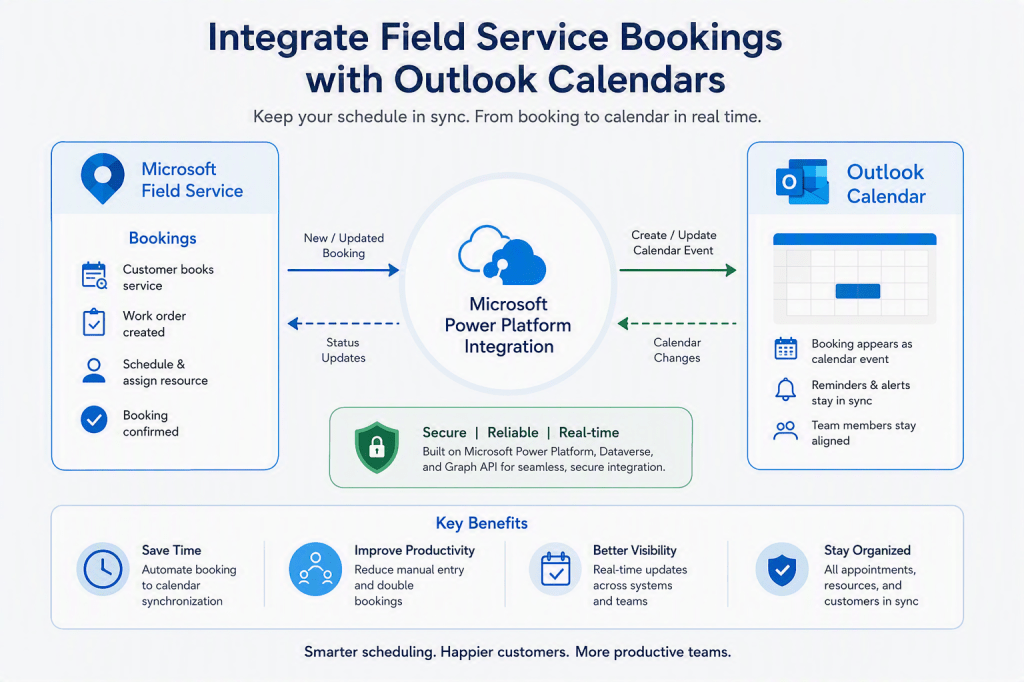
In this blog, we will look at how to enable Outlook integration and verify that Field Service bookings appear in the technician’s Outlook calendar.
Prerequisites
- Dynamics 365 Field Service environment.
- Exchange Online / Microsoft 365 integration enabled.
- Proper admin permissions for the environment and mailbox setup. Microsoft requires a Dynamics 365 System Admin role and an Exchange admin role, or delegated mailbox approver access, for the setup.
Set-up the Integration
Step 1: To begin, open the Power Platform admin center and Select Manage > Environments and select your target environment.
Step 2: Then go to Settings > Email > Server profiles. Confirm that the Microsoft Exchange Online server profile is active and the Authentication Type is set to Server-to-Server Authentication.
Step 3: Next, go to Email > Mailboxes and open the relevant user mailbox.
Step 4: Edit the user mailbox and perform the following steps:
- Confirm that the server profile is set correctly.
- Set Appointments, Contacts, and Tasks to Server-Side Synchronization.
- In the command bar, Select Approve Email and confirm.
- Select Test & Enable Mailbox and confirm.
- Select Save & Close.

Step 5: To confirm that a mailbox is ready, refresh the mailbox screen and check for a success status.
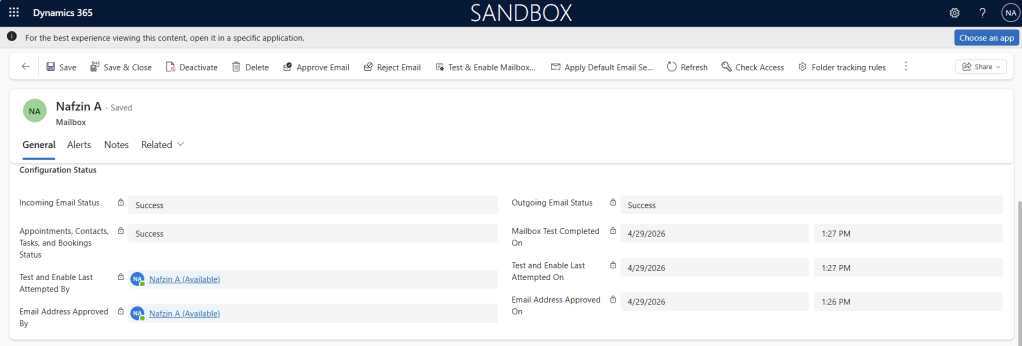
Booking Synchronization
Once the setup is complete, create a work order booking for a technician. When the booking is scheduled, it appears in the technician’s Outlook calendar after synchronization, usually within 10 to 15 minutes.
- Open the Work Order and select Book from the command bar. Enter the appointment start and end time as required.
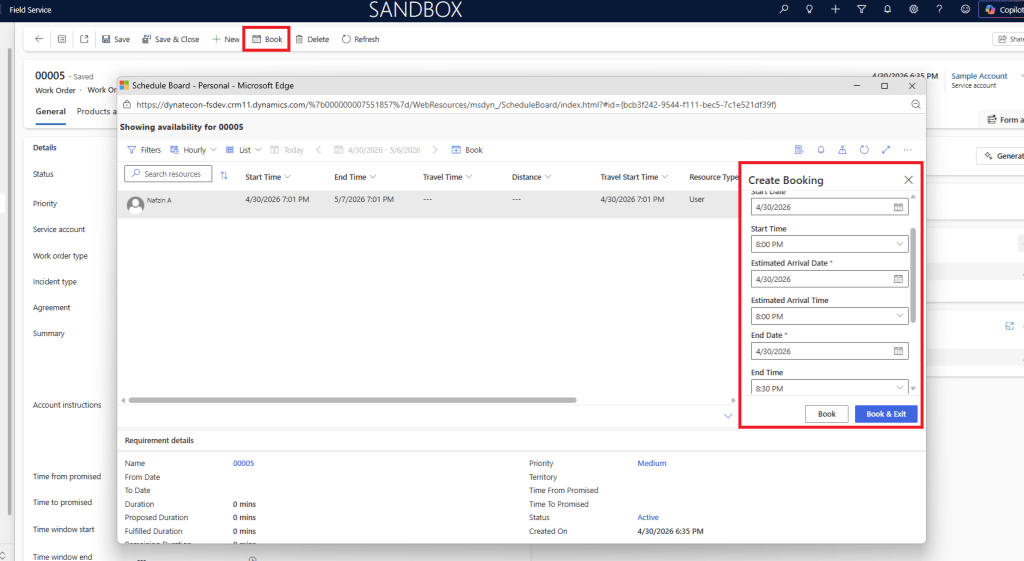
Scenario 1: First-time booking
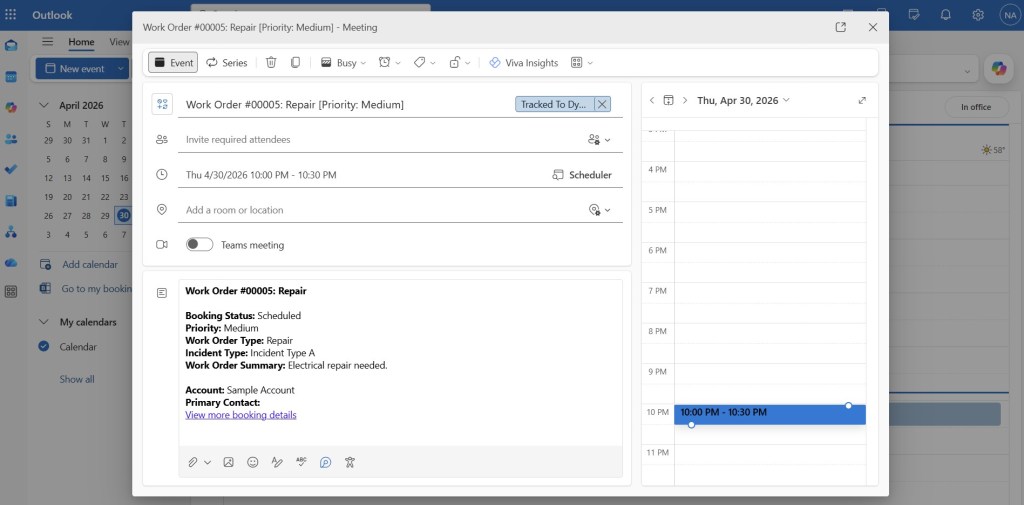
- When the booking is scheduled for the first time, the following fields are populated: Priority, Location, Work Order Type, Primary Incident Type, Work Order Summary, Account, and Primary Contact.

- Check the Outlook Calendar: The booking should now appear as a calendar item with the expected work order details on technician’s Outlook.

Scenario 2: Booking Update after creation
- If the work order is updated later, those changes aren’t reflected in Outlook unless there’s a change to the booking time window or location.
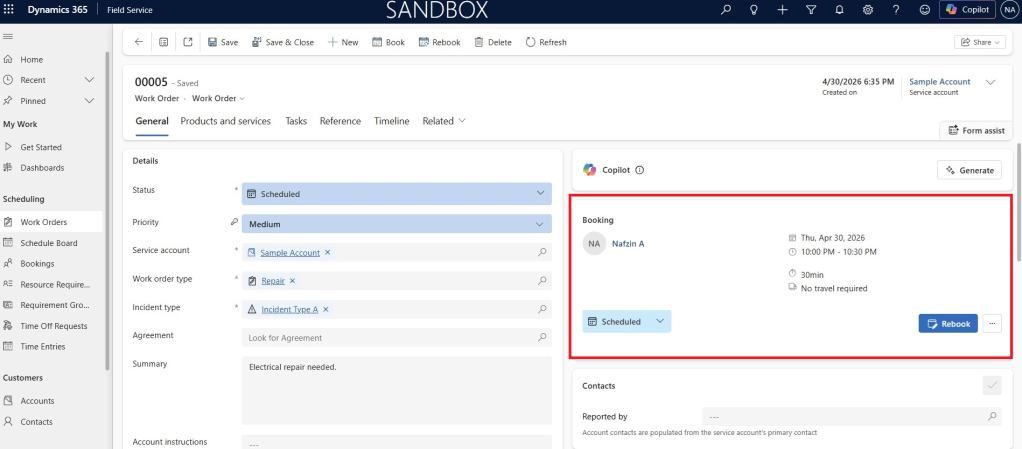
- Booking updated to a new time window, showing the refreshed Outlook event.
This confirms that the connection between Field Service and Outlook is working correctly. This feature helps keep the technician’s calendar aligned with the work order booking details.

