

 Written by
 Introduction
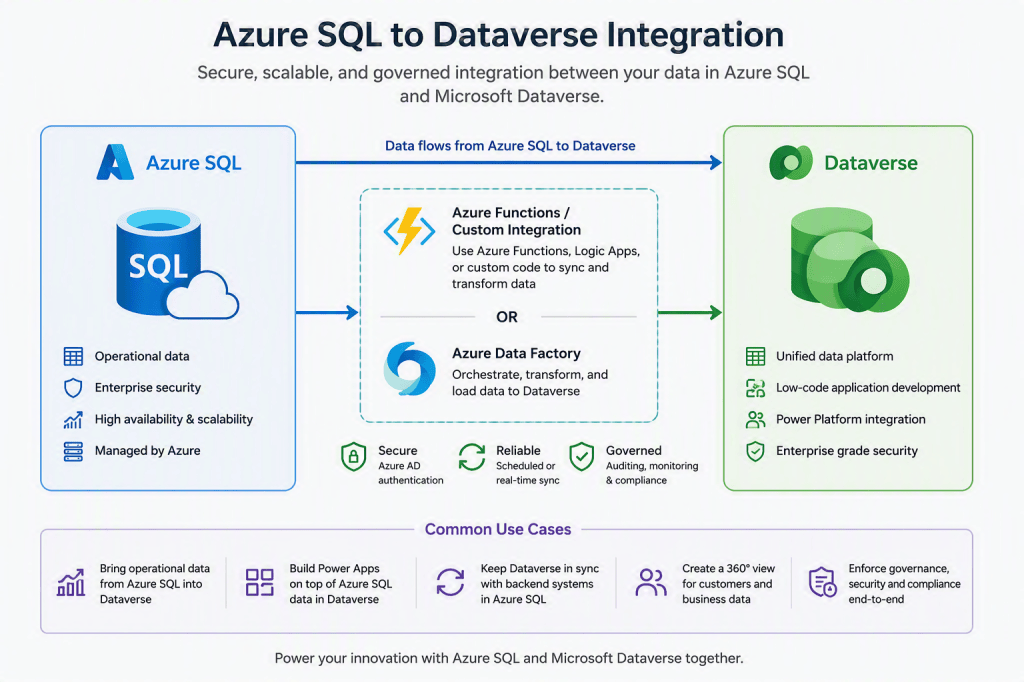
Many organizations use Microsoft Dataverse to store business data for Power Apps and Dynamics 365. In some cases, this data comes from external systems such as Azure SQL Database. Azure Data Factory (ADF) provides a simple and reliable way to move data between these systems.
In this blog, I will explain how I created a Proof of Concept (PoC) to copy customer data from an Azure SQL Database to the Dataverse Account table using Azure Data Factory.
Solution Overview
The solution consists of three main components:
- Azure SQL Database – Stores the customer data.
- Azure Data Factory – Copies data from Azure SQL to Dataverse.
- Microsoft Dataverse – Stores the customer records in the Account table.
Architecture
Azure SQL Database
│
▼
Azure Data Factory
│
▼
Microsoft Dataverse
│
▼
Power Apps
Prerequisites
Before starting, make sure the following resources are available:
- Azure Subscription
- Azure SQL Database
- Azure Data Factory
- Microsoft Dataverse environment
- Power Apps access
- Service Principal with permission to access Dataverse
Step 1 – Create the Azure SQL Database
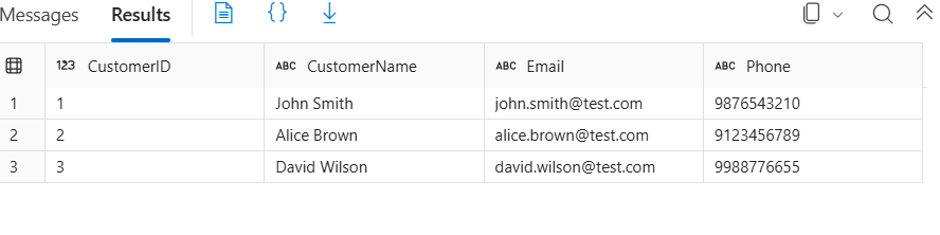
I created an Azure SQL Database and added a table called Customer.
The table contains the following columns:
| Column | Data Type |
| CustomerID | Integer |
| CustomerName | NVARCHAR |
| NVARCHAR | |
| Phone | NVARCHAR |
I then inserted a few sample customer records to test the integration.
Step 2 – Create the Azure Data Factory Pipeline
In Azure Data Factory, I created a new pipeline and added a Copy Data activity.
This activity is responsible for copying data from Azure SQL Database to Microsoft Dataverse.
Step 3 – Configure the Source
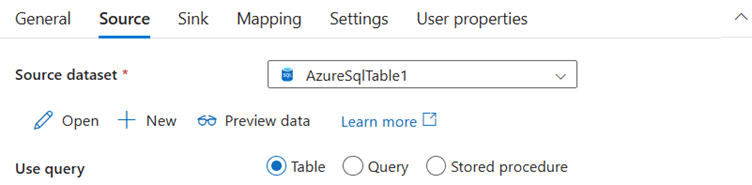
I created an Azure SQL linked service and connected it to the SQL database.
For the source dataset, I selected the Customer table.
After testing the connection, ADF was able to read the data successfully.
Step 4 – Configure the Dataverse Sink
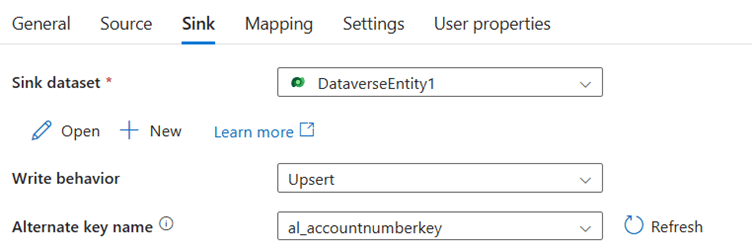
Next, I created a Dataverse linked service using Service Principal authentication.
After providing the required connection details, the linked service connected successfully.
The destination dataset was configured to use the Account table.
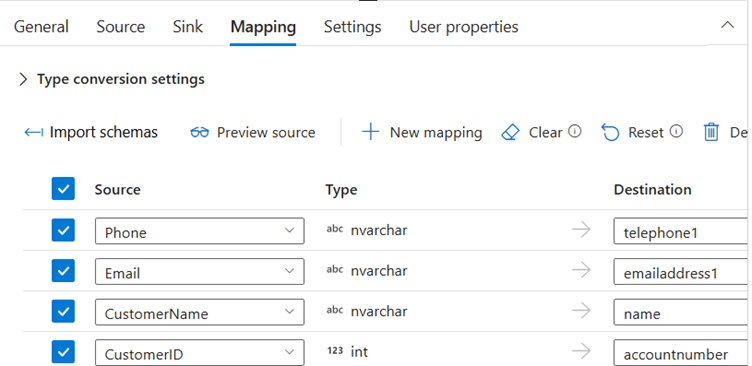
Step 5 – Map the Fields
The required fields were mapped manually.
| Azure SQL | Dataverse Account |
| CustomerID | Account Number |
| CustomerName | Name |
| Email Address | |
| Phone | Telephone |
Only the required fields were mapped to keep the configuration simple.
Challenge Faced
When I first ran the pipeline, it failed with the following error:
DynamicsMissingKeyColumns
The sink was configured to use Upsert, but the Account table did not have an Alternate Key.
Because of this, Azure Data Factory could not identify existing records.
Solution
To fix the issue, I created an Alternate Key on the Account Number field in the Dataverse Account table.
After the key became active:
- I selected it in the ADF sink configuration.
- I kept the write behavior as Upsert.
- I mapped CustomerID to Account Number.
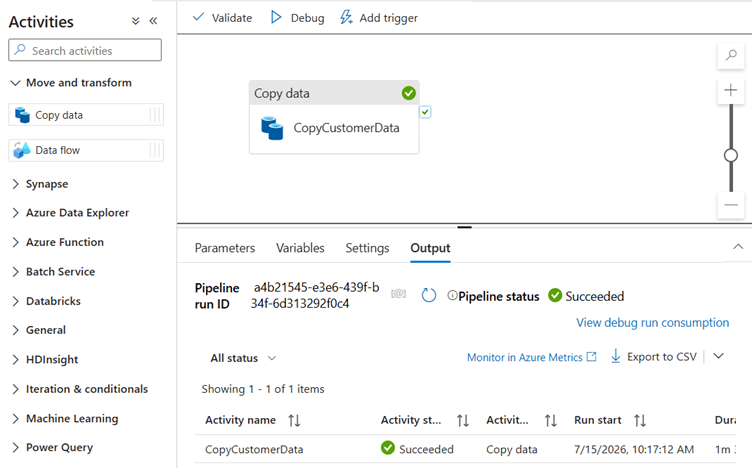
Once these changes were made, the pipeline ran successfully.
Testing the Pipeline
After validating the pipeline, I ran it again.
The pipeline successfully:
- Read customer records from Azure SQL Database.
- Copied the records to Dataverse.
- Created the records in the Account table.
The data was visible in Power Apps after the pipeline completed.
Benefits of This Approach
- Simple and easy to configure.
- Supports secure authentication.
- Can insert or update existing records using Upsert.
- Reduces manual effort.
- Can be extended to other Dataverse tables and business scenarios.
Conclusion
This Proof of Concept showed how Azure Data Factory can be used to move customer data from Azure SQL Database to Microsoft Dataverse.
One important lesson from this implementation is that Upsert requires an Alternate Key in Dataverse. After configuring the Alternate Key on the Account Number field, the pipeline successfully synchronized the data.
This approach can also be used with other data sources, such as Azure Databricks, making it a flexible solution for integrating enterprise data with the Microsoft Power Platform.

